

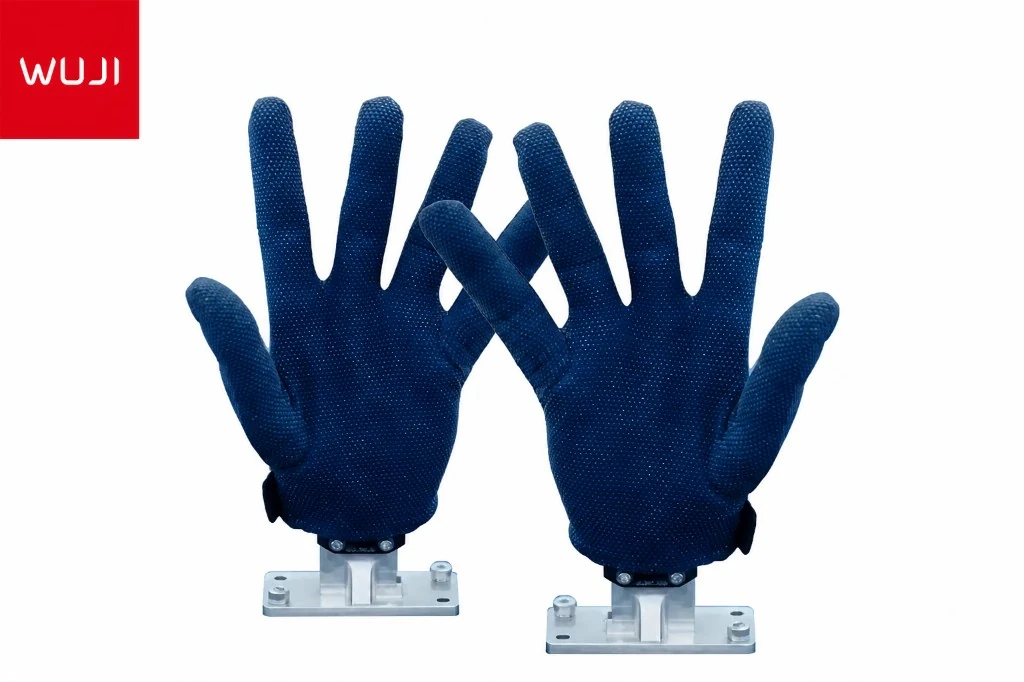
左骨O6
软件设置
SDK 安装、CAN 驱动程序设置、ROS2 控制器配置、O6 的 LeRobot 集成、Python API 示例以及主要故障排除问题。 从全新的 Ubuntu 安装到移动手臂。
跳转到一个部分:
第 1 步 — SDK 安装
SDK安装
LinkerBot O6 SDK 提供与 Arm 的 CAN 总线接口的 Python 绑定。 它包含在 RoboticsCenter 平台包中。
创建虚拟环境(推荐)
python3 -m venv ~/.venvs/linkerbot-o6
source ~/.venvs/linkerbot-o6/bin/activate
安装SDK
pip install roboticscenter验证安装
python3 -c "from linkerbot import LinkerBotO6; print('SDK ready')"从源安装(可选)
git clone https://github.com/linkerbot/linkerbot_sdk.git
cd linkerbot_sdk
pip install -e .第 2 步 — CAN 驱动程序设置
CAN 驱动程序设置
LinkerBot O6 使用与 OpenArm 1 相同的 SocketCAN 架构。 如果您已为 OpenArm 设置 CAN,则此过程是相同的。 CAN 总线驱动程序内置于 Linux 内核中。
加载内核模块
sudo modprobe can
sudo modprobe can_raw
sudo modprobe slcan   # for USB CAN adapters (CANable)
调出CAN接口
# Find the USB serial device
ls /dev/ttyACM*

# Bring up CAN interface at 1 Mbps
sudo slcand -o -c -s8 /dev/ttyACM0 can0
sudo ip link set up can0
验证接口是否已启动
ip link show can0
# Expected: can0: <NOARP,UP,LOWER_UP> mtu 16 ...
测试CAN通讯
sudo apt install can-utils -y
candump can0
# Power on the O6 and look for motor heartbeat packets
重新启动后保持不变
创建一个systemd服务或添加到 /etc/rc.local。 请参阅 SocketCAN 设置指南 — O6 的程序相同。
第 3 步 — ROS2 控制器
ROS2 控制器设置
这 linkerbot_ros2 软件包为 O6 提供了完整的 ros2_control 硬件接口。 它包括用于在没有手臂的情况下进行测试的假硬件模式。
安装 ROS2 Humble
sudo apt update && sudo apt install software-properties-common curl -y
sudo curl -sSL https://raw.githubusercontent.com/ros/rosdistro/master/ros.asc | \
  sudo apt-key add -
sudo sh -c 'echo "deb http://packages.ros.org/ros2/ubuntu jammy main" \
  > /etc/apt/sources.list.d/ros2.list'
sudo apt update
sudo apt install ros-humble-desktop ros-humble-ros2-control \
  ros-humble-ros2-controllers ros-humble-joint-state-publisher-gui -y
克隆并构建 linkerbot_ros2
mkdir -p ~/o6_ws/src && cd ~/o6_ws/src
git clone https://github.com/linkerbot/linkerbot_ros2.git
cd ~/o6_ws
source /opt/ros/humble/setup.bash
colcon build --symlink-install
以假硬件模式启动(无需手臂)
source ~/o6_ws/install/setup.bash
ros2 launch linkerbot_ros2 o6.launch.py use_fake_hardware:=true
使用真实硬件启动
ros2 launch linkerbot_ros2 o6.launch.py \
  use_fake_hardware:=false \
  can_interface:=can0
验证联合状态
ros2 topic echo /joint_states第 4 步 — 乐机器人 O6
乐机器人O6集成
乐机器人原生支持LinkerBot O6。 配置您的机器人类型并遵循标准 LeRobot 工作流程进行记录和训练。
安装乐机器人
pip install lerobot配置您的 O6 机器人
# ~/.lerobot/robots/linkerbot_o6.yaml
robot_type: linkerbot_o6
can_interface: can0
num_joints: 6
camera_names:
  - wrist_cam
  - overhead_cam
记录数据集
python -m lerobot.scripts.control_robot \
  --robot.type=linkerbot_o6 \
  --control.type=record \
  --control.fps=30 \
  --control.repo_id=your-username/o6-pick-place \
  --control.num_episodes=50 \
  --control.single_task="Pick up the red cube"
上传至 HuggingFace Hub
huggingface-cli login
python -m lerobot.scripts.push_dataset_to_hub \
  --repo_id=your-username/o6-pick-place
请参阅 数据收集页面 包括质量检查在内的完整工作流程。
第 5 步——Python API
Python API 示例
LinkerBot Python SDK 提供直接关节控制,无需 ROS2。 与 OpenArm SDK 相同的模式。
基本联合控制
from linkerbot import LinkerBotO6

# Connect to the arm
arm = LinkerBotO6(can_interface="can0")
arm.connect()
arm.enable_all()

# Move joint 1 to 45 degrees (0.785 rad)
arm.set_position(joint_id=1, position=0.785, kp=50, kd=1)

# Read current state
state = arm.get_state()
print(f"Positions (rad): {state.positions}")
print(f"Velocities (rad/s): {state.velocities}")
print(f"Torques (Nm): {state.torques}")

# Safe shutdown
arm.disable_all()
arm.disconnect()
读取控制回路中的所有关节
import time
from linkerbot import LinkerBotO6

arm = LinkerBotO6(can_interface="can0", control_rate_hz=500)
arm.connect()
arm.enable_all()

for _ in range(500):  # 1 second at 500 Hz
    state = arm.get_state()
    print(state.positions)
    time.sleep(1 / 500)

arm.disable_all()
arm.disconnect()
轨迹执行
from linkerbot import LinkerBotO6, JointTrajectory
import numpy as np

arm = LinkerBotO6(can_interface="can0")
arm.connect()
arm.enable_all()

# Define a waypoint trajectory
waypoints = [
    [0.0, 0.0, 0.0, 0.0, 0.0, 0.0],
    [0.5, -0.3, 0.8, 0.0, 0.4, 0.0],
    [0.0, 0.0, 0.0, 0.0, 0.0, 0.0],
]
durations = [2.0, 2.0, 2.0]  # seconds per segment

traj = JointTrajectory(waypoints=waypoints, durations=durations)
arm.execute_trajectory(traj)

arm.disable_all()
arm.disconnect()故障排除
最常见的 3 个问题
错误1
未找到 CAN 接口:
no such device can0
SocketCAN接口未启动。 几乎总是因为 USB CAN 适配器未连接或内核模块未加载。
使固定:
# 1. Verify USB adapter is detected
lsusb | grep -i "can\|serial"

# 2. Load the kernel modules
sudo modprobe can && sudo modprobe can_raw && sudo modprobe slcan

# 3. Bring up the interface
sudo slcand -o -c -s8 /dev/ttyACM0 can0
sudo ip link set up can0

# 4. Verify
ip link show can0
错误2
之后关节没有反应
arm.enable_all()
电机未接收命令。 最常见的原因是 CAN ID 不正确、CAN 总线错误帧或电源电压不足。
使固定:
# 1. Check for CAN error frames
candump can0 | grep -i "error"

# 2. Check power supply — O6 requires 24V @ 150W minimum

# 3. Scan for motors and verify IDs
python3 -c "from linkerbot import LinkerBotO6; a=LinkerBotO6('can0'); a.scan_motors()"

# 4. Power cycle the arm and retry
错误3
乐扫机器人连接失败:
robot not found
乐机器人启动时找不到O6机器人配置或CAN接口未启动。
使固定:
# 1. Verify CAN interface is up before starting LeRobot
ip link show can0

# 2. Verify config file path and format
cat ~/.lerobot/robots/linkerbot_o6.yaml

# 3. Test direct SDK connection first
python3 -c "
from linkerbot import LinkerBotO6
a = LinkerBotO6(can_interface='can0')
a.connect()
print('Connected:', a.get_state())
a.disconnect()"

# 4. Then retry LeRobot
python -m lerobot.scripts.control_robot \
  --robot.type=linkerbot_o6 \
  --control.type=teleoperate