

RoboticsCenter SDK
Get started with the RoboticsCenter Python SDK: pip install roboticscenter, run rc connect, and your first teleop session is live in minutes. Supports LinkerBot O6 and VLAI L1.
On this page
- Install
- Connect your hardware
- Auto-detect
- Specify device
- Mock mode
- What happens
- Session URL
- Network Modes
- Scan for devices
- Python API
- LinkerO6
- L1Robot
- Environment variables
- Troubleshooting
Getting Started
Hardware Guides
Also see
Quickstart Python 3.10+
Connect any supported hardware to platform.roboticscenter.ai in minutes. No vendor SDK required.
5 min read Updated Apr 2026
Supported hardware: LinkerBot O6, VLAI L1. More devices coming soon — check the platform dashboard for the latest compatibility list.
Install
shell Copy
$ pip install roboticscenter
Requirements: Python 3.10 or higher. Supported hardware: LinkerBot O6, VLAI L1 (more coming). A free account on platform.roboticscenter.ai is required to stream data.
Connect your hardware
Auto-detect (recommended)
shell Copy
$ rc connect
Specify device
shell Copy
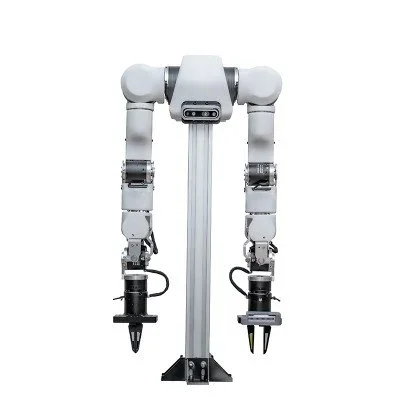
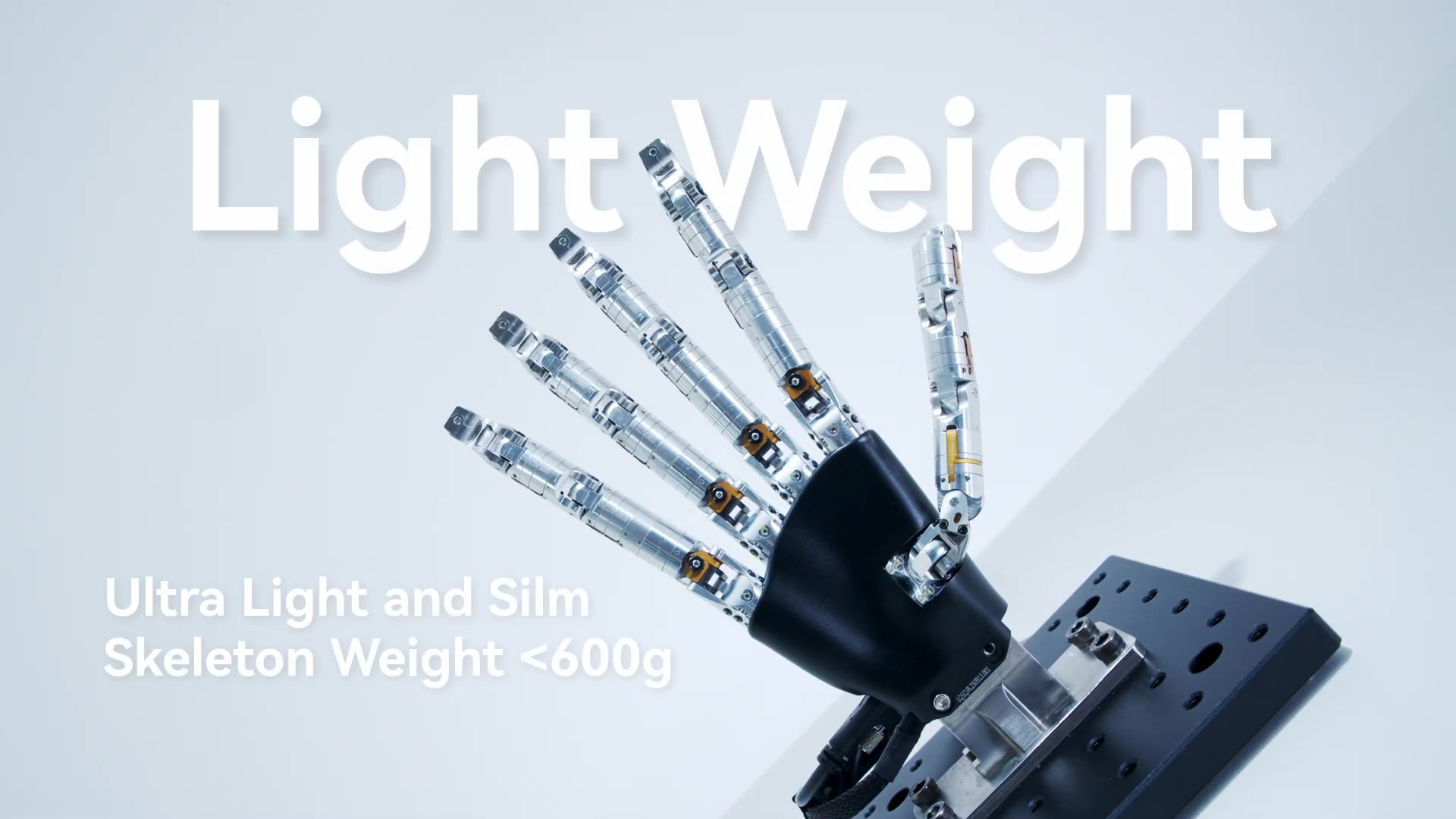
$ rc connect --device linker-o6 # LinkerBot O6 dexterous hand $ rc connect --device l1 # VLAI L1 dual-arm robot
Test without hardware
shell Copy
$ rc connect --mock
Mock mode runs a full simulated device session — session URL, data stream, and browser panel all work exactly as with real hardware. No robot or USB connection needed.
What happens
Session creation — SDK authenticates and creates a session on platform.roboticscenter.ai.
URL printed — Terminal prints:
Session ready → https://platform.roboticscenter.ai/session/RC-XXXX-XXXXBrowser opens — URL opens in your default browser automatically (or copy and paste it).
Teleop panel loads — The browser shows the Teleop control panel, pre-configured for your connected device.
Data streams — Sensor data streams automatically to your account. Recordings appear in the platform dashboard.
Session URL
Every rc connect generates a unique, time-limited Session URL:
https://platform.roboticscenter.ai/session/RC-A7B2-X9K1
Share this URL with a collaborator — they can monitor or co-operate the robot from any browser, anywhere, without installing anything. Sessions expire after 1 hour. Run rc connect again to get a new one.
Sharing tip: Session URLs grant full teleop access to whoever has the link. Only share with people you trust. Future versions will support read-only guest tokens.
Network Modes
The platform auto-detects the best connection method for your setup. You can override it manually if needed.
| Mode | When to use |
|---|---|
| Auto (default) | Tries local backend first, falls back to cloud. Best for most setups. |
| LAN | Force local/intranet routing — lowest latency when robot and browser are on the same network. |
| Cloud | Force routing through platform.roboticscenter.ai. Best when operating remotely. |
Switch modes in the browser: click the network badge (🏠 / 🌐) in the top bar of the teleop panel. Or set the environment variable before connecting:
shell Copy
$ RC_PLATFORM_URL=http://192.168.1.100:8000 rc connect
Scan for devices
Before connecting, you can list all devices the SDK detects on your system:
shell Copy
$ rc devices
Example output:
Port Description Device /dev/ttyUSB0 CP2102 USB-UART Bridge linker_o6 (ROS2 node) VLAI L1 Robot l1_robot
Linux note: If /dev/ttyUSB0 isn't visible, you may need to add your user to the dialout group: sudo usermod -aG dialout $USER then log out and back in.
Python API
For programmatic access — custom processing pipelines, automated data collection, or integration with your own training loop — use the Python API directly.
LinkerBot O6
python Copy
from roboticscenter import LinkerO6
device = LinkerO6.connect() # auto-detect serial port print(device.session_url) # https://platform.roboticscenter.ai/session/RC-...
for frame in device.stream(): print(frame.data) # sensor readings per frame # your processing here
VLAI L1 Robot
python Copy
from roboticscenter import L1Robot
robot = L1Robot.connect(mock=True) # no hardware needed for testing
for frame in robot.stream(): joints = frame.data['joints'] base = frame.data['base'] print(f"Left arm: {joints['left_arm']}")
Environment variables
| Variable | Default | Description |
|---|---|---|
RC_PLATFORM_URL |
https://platform.roboticscenter.ai |
Backend URL. Override to point at a local instance or a custom Cloud Run deployment. |
Troubleshooting
Common issues when getting started with the SDK:
rc devices shows nothing
On Linux, ensure your user is in the dialout group: sudo usermod -aG dialout $USER, then log out and back in. On Windows, check Device Manager for COM ports. Confirm the USB cable is data-capable (not charge-only).
Connection timeout on rc connect
Ensure platform.roboticscenter.ai is reachable from your network. If on an air-gapped or restricted LAN, set RC_PLATFORM_URL to point at a local backend. Run rc connect --mock to verify the SDK itself is installed correctly.
Auto-detect picks the wrong device
Use rc devices to list all detected hardware, then connect explicitly: rc connect --device linker-o6 --port /dev/ttyUSB0 or rc connect --device l1 for the VLAI L1.
Browser panel not loading
Copy the session URL from the terminal and open it manually. Ensure cookies and WebSockets are not blocked by your browser or proxy. Try an incognito window if the panel remains blank.
Need more help? For device-specific issues, see the LinkerBot O6 debugging guide or VLAI L1 wiki. Contact RCSV support with the output of rc devices and python -c "import roboticscenter; print(roboticscenter.__version__)".
New to robotics? If you're still learning the fundamentals — arms, teleop, ROS 2, deployment — start with the RCSV Robotics Academy before diving into SDK integration.
Next steps
VLAI L1 Guide Full setup for the dual-arm mobile robot → LinkerBot O6 Guide Serial protocol, glove controller, data collection → SDK API Reference Full Python API and CLI command reference → Platform Dashboard ↗ View sessions, recordings, and devices →