


LinkerBot O6 Setup Guide
From unboxing to a live browser teleop session. Three commands, under 15 minutes.
Unboxing & USB Connect
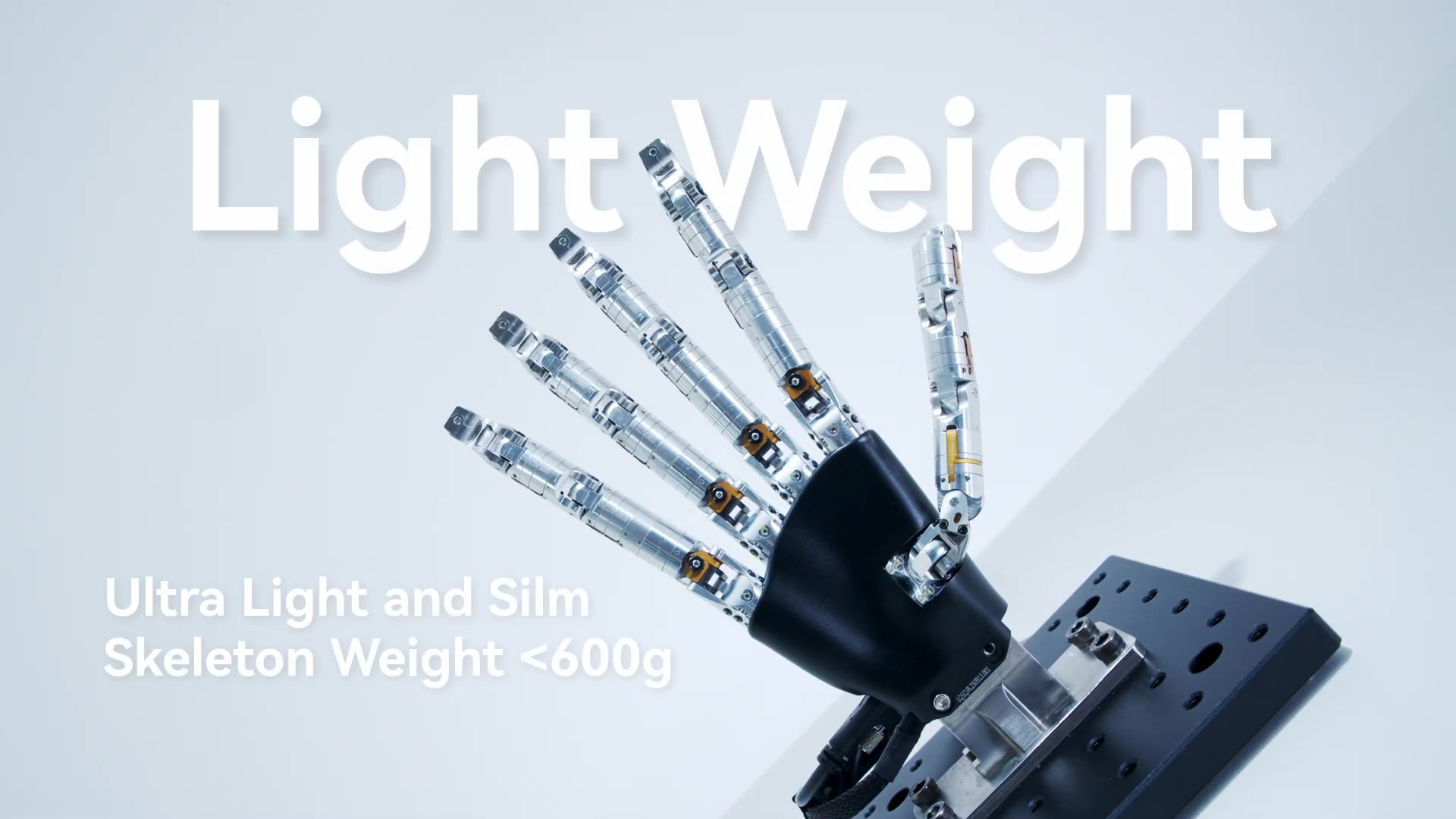
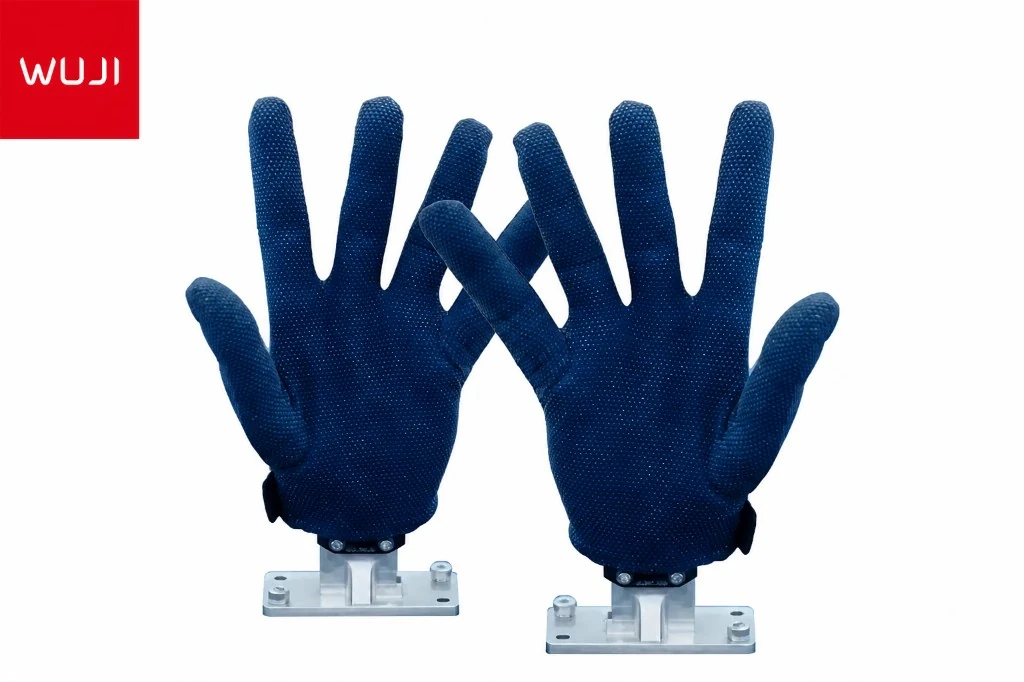
Remove the O6 hand system and glove controller from packaging. Inspect for any shipping damage — verify all finger joints move freely and the glove cable connector is intact.
Plug the O6 into your computer via USB. Confirm the port appears:
# Linux
ls /dev/ttyUSB*          # should show /dev/ttyUSB0 or similar

# Windows — check Device Manager under "Ports (COM & LPT)"
If the port does not appear on Linux, add your user to the dialout group:
sudo usermod -aG dialout $USER
# Log out and back in for the group change to take effect
SDK Install & Connect
Install the RoboticsCenter SDK (Python 3.9+). It handles all serial framing, protocol parsing, and platform session management automatically:
pip install roboticscenter
Scan for detected devices, then connect:
rc devices                    # scan all ports, confirm O6 is visible
rc connect                    # auto-detect LinkerBot O6 and open a session
The CLI auto-detects the O6 by scanning for the Robotics Center AA 55 03 99 frame header on each available port. It opens a session on the platform and prints a browser URL. If multiple serial devices are present, specify the port manually:
rc connect --port /dev/ttyUSB0        # Linux
rc connect --port COM3                # Windows
rc connect --mock to start a simulated O6 session with synthesized sensor data. All SDK features, the browser panel, and data recording work identically in mock mode.
Browser Teleop Panel
After rc connect succeeds, the CLI prints and optionally opens a session URL like:
https://platform.roboticscenter.ai/session/RC-XXXX-XXXX
Open the URL in any browser. The teleop panel includes:
- Finger position display: Real-time bend angle bars for all 10 fingers (5 per hand), updated at the sensor frame rate.
- Gesture presets: One-click gestures — Rock, Paper, Scissors, Pinch, Spread — sent as motor position targets.
- Tactile heatmap: 16-region pressure overlay rendered on a hand outline. Color intensity maps to contact pressure.
- Hand selector: Toggle between left hand, right hand, or both simultaneously.
- Session recorder: Start/stop episode recording from the panel. Each episode is timestamped and uploaded to the platform on stop.
Pass --no-browser to suppress automatic browser launch if running headlessly:
rc connect --no-browser
Glove Calibration
Calibrate the glove controller to the operator's hand size so that bend angles map accurately to the robot hand's commanded positions. Calibration data is stored per-operator and persists across sessions.
In the browser teleop panel, navigate to Settings → Calibrate Glove and follow the two-step flow:
- Open position baseline: Hold the glove flat and fully relaxed (all fingers extended). Confirm when prompted.
- Closed position: Make a closed fist (all fingers fully flexed). Confirm when prompted.
After calibration, the finger bend bars should track your hand movements linearly from 0% (fully open) to 100% (fully closed) without clipping at either end.
Data Collection
Every frame streamed from the O6 during an active recording session is captured in JSONL format. Use the Python SDK directly for custom collection scripts:
from roboticscenter import LinkerO6

device = LinkerO6.connect()
print(f"Connected on: {device.port}")
print(f"Session: {device.session_url}")

for frame in device.stream():
    left = frame.data.get('left', {})
    print(f"Index: {left.get('index', 0):.3f}")
Or use the browser panel recorder: click Record to start an episode, perform your demonstration, then click Stop. Episodes are immediately available in the platform episode browser for download, playback, or training pipeline ingestion.
rc session RC-XXXX-XXXX to show the session info and upload URL.
For full protocol details, Python SDK reference, and platform integration docs, see the LinkerBot O6 wiki page.