


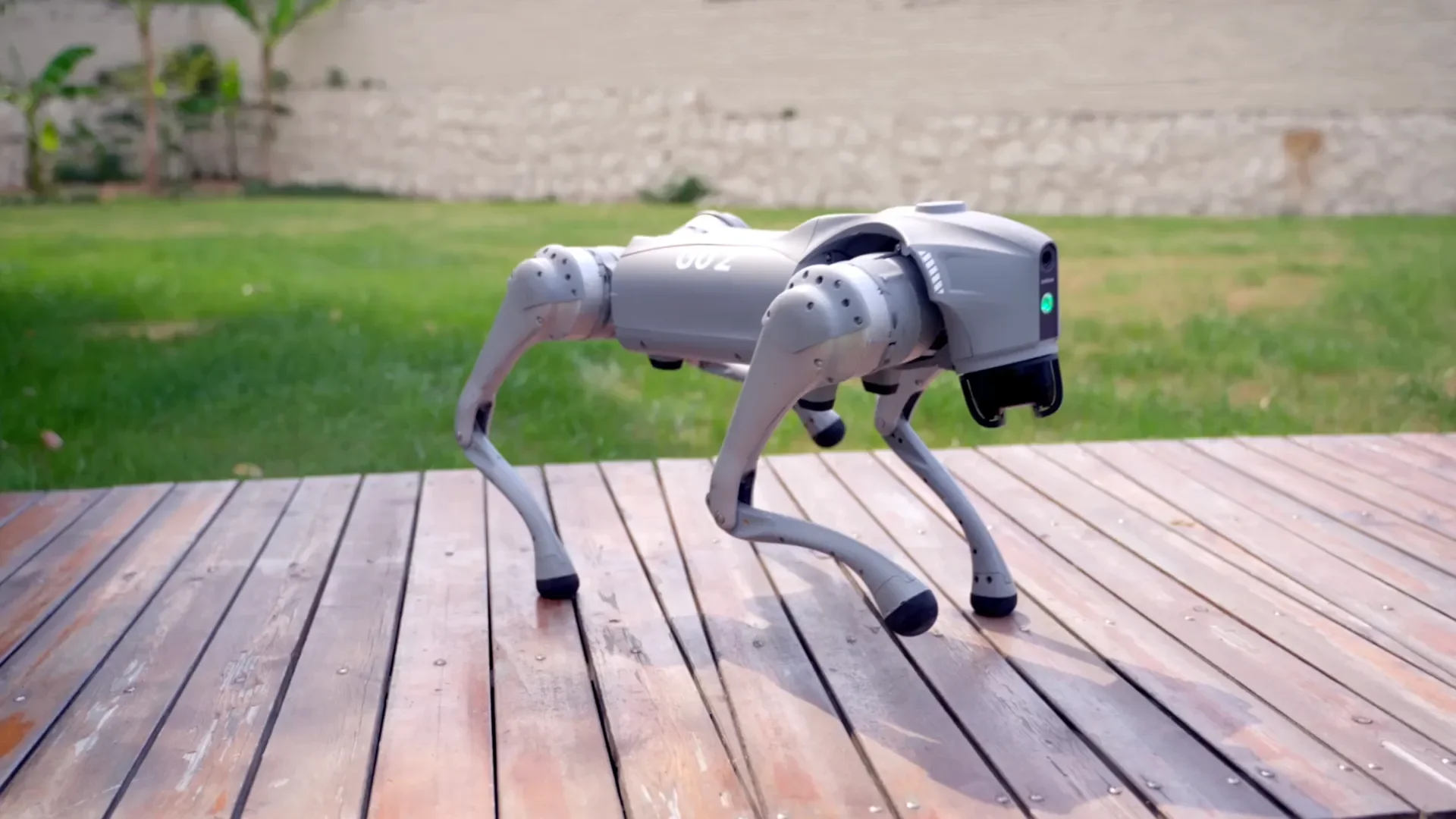
How to Use the RC M1 Mobile Manipulator
RC M1 user guide: safety and the physical E-stop, starting and stopping the robot, connecting to the operator portal, gamepad and Meta Quest teleoperation, arm calibration, camera recording, maintenance, and troubleshooting.
Buying an M1? See the RC M1 store page and the M1 overview.
On this page
- Overview
- Safety first
- Unboxing
- Powering on and off
- Emergency stop
- Connecting to the robot
- Teleoperation
- Arm calibration
- Recording data
- Running a trained policy
- Charging and maintenance
- Troubleshooting
- Support
Also see
This guide covers day-to-day operation of the RC M1 mobile manipulator: how to keep the robot safe, start it, connect to it, drive it, and look after it. Where a step has not yet been documented by our engineering team, it is marked TBD — confirm with engineering. Contact support before you attempt that step rather than guessing.
1. Overview
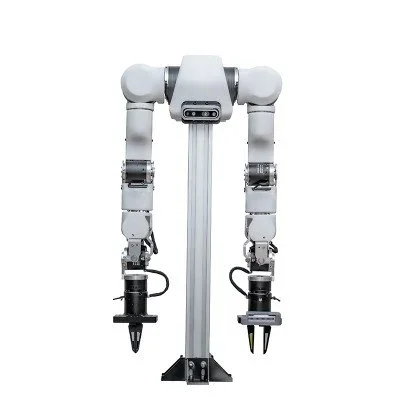
The RC M1 is a bimanual mobile manipulator. It has four actuated subsystems, all controlled from one onboard computer:
| Subsystem | What it is |
|---|---|
| Two arms | 2× OpenArm 1, each with seven joints plus a gripper, driven by Damiao motors. OpenArm publishes a nominal payload of 4.1 kg per arm, including the end effector (OpenArm 1.0 spec). |
| Vertical lift | A linear rail that raises and lowers the upper body. |
| Mobile base | An AgileX Ranger Air wheeled chassis that drives forward and back and turns in place. |
| Battery and power | Battery packs that power the arms and lift, plus the base's own battery. |
The onboard computer is an NVIDIA Jetson AGX Orin running ROS 2 Jazzy on Ubuntu 24.04. Intel RealSense cameras stream to the operator portal (see Connecting). The exact configuration of your unit is listed on its packing list.
Every unit is commissioned and calibrated by our engineers before delivery and includes a physical E-stop.
2. Safety first
The physical E-stop is the primary way to stop the M1. Read this section before powering the robot.
- Keep the physical E-stop within reach of an attentive operator whenever the robot is powered. Software stops run on the same computer and wiring as the motion commands. If that path fails, a software stop fails with it.
- The robot does not detect people or obstacles. Clear the work area before any motion, and keep people outside the arms' and base's reach while the robot is enabled.
- Make the first motion of every session small and slow, with open space around the base.
- If you cannot confirm the robot has stopped, use the physical E-stop or cut power. Do not assume a stop succeeded because the software reported it.
- The dashboard stop buttons and the gamepad stop are operator conveniences. They are not safety-rated devices and do not replace the physical E-stop.
- Only one control mode may run at a time (see Teleoperation). Never start a second control program while one is running.
Your site's own robot-safety procedure always takes precedence over this guide.
3. Unboxing
Your M1 arrives commissioned and calibrated by our engineers.
- Crate handling, lifting points, and removing the robot from the crate: TBD — confirm with engineering.
- Packing list and inspection checklist: TBD — confirm with engineering.
- Transport lock and shipping restraints to remove before first power-on: TBD — confirm with engineering.
4. Powering on and off
Powering on
- Check that the area is clear and the physical E-stop is within reach and released.
- Main power switch location and power-on order for the computer, arms, lift, and base: TBD — confirm with engineering.
- Start the robot's control software. The exact start procedure for your unit is TBD — confirm with engineering.
- When the dashboard control software starts, the arms stay limp (unpowered). Nothing moves until you press Connect motors in the dashboard. Each arm then holds its current pose. Whether your unit is set to power the motors automatically at boot: TBD — confirm with engineering. Until confirmed, treat the robot as live from the moment it is powered.
Powering off
- Bring the arms to a safe, supported pose and stop the base.
- Press Disconnect in the dashboard. This makes the arms limp again, puts the base in standby, and disables the lift. The arms are unpowered after Disconnect, so make sure they are supported or resting before you press it.
- Stop the control software. Stopping it disables every motor before it exits.
- Main power-off order: TBD — confirm with engineering.
If any motor is still energized or moving after these steps, use the physical E-stop or cut power.
5. Emergency stop
Physical E-stop (primary)
- Location of the M1's E-stop button(s): TBD — confirm with engineering.
- The mobile base has its own chassis E-stop. After you release it, the base keeps a latched fault and will not move until the fault is cleared. Press Clear in the dashboard after releasing the E-stop.
Software stop (convenience only)
- Dashboard: the E-STOP button.
- Gamepad: the START button.
A software stop immediately disables the arm motors, puts the base in standby, and quick-stops the lift. It also cancels any running calibration. To resume, press Clear. If the motors were connected, they re-enable and hold their current pose.
Base remote control
The base comes with its own handheld remote. The base only obeys commands from the robot computer when the remote's SWB switch is in the TOP position. In any other position the base ignores the computer, including software stop commands. If the base stops receiving commands, it stops by itself after half a second.
6. Connecting to the robot
- Network setup (Wi-Fi or Ethernet, and how to find the robot's address): TBD — confirm with engineering.
- On a laptop on the same network, open
https://<ROBOT_IP>:8443in Chrome or Edge. Replace<ROBOT_IP>with your robot's address. The portal includes:- the dashboard: connect and disconnect, E-STOP and Clear, per-joint sliders, calibration, robot status, and the log.
- camera views from the robot's cameras.
- a 3D view of the robot's current pose.
- Your browser may show a certificate warning the first time you connect. How to install or trust the robot's certificate: TBD — confirm with engineering.
- Accounts, remote access over the internet, and cloud/fleet connection: TBD — confirm with engineering.
7. Teleoperation
The M1 supports teleoperation by gamepad, keyboard, web UI, and Meta Quest VR. Run only one control mode at a time. Two control programs must never command the arms at the same time.
Gamepad and dashboard
Plug an Xbox-, 8BitDo-, or PlayStation-style gamepad into the robot computer, then press Connect motors. The gamepad takes over automatically. If no gamepad is plugged into the robot, the portal can relay a gamepad connected to your laptop's browser.
| Input | Action |
|---|---|
| D-pad up / down | Select the previous / next arm joint |
| D-pad left / right | Switch between the left and right arm |
| Left stick (left/right) | Move the selected joint |
| R2 / L2 | Drive the base forward / backward |
| L1 / R1 | Turn the base in place |
| Right stick (up/down) | Raise / lower the lift |
| START | Software stop |
In this mode you move one arm joint at a time. You can also drag each joint's slider in the dashboard. A slider shows the joint's measured position, so if the joint stalls the slider stalls too.
Meta Quest (VR)
The M1 also supports teleoperation from a Meta Quest headset through its web browser. The arms follow your hands. How to start VR mode on your unit is TBD — confirm with engineering.
| Quest input | Action |
|---|---|
| Grip | Hold to engage that hand's arm. Release to reposition your hand. |
| Trigger | Open and close the gripper |
| Left stick | Drive the base |
| Right stick | Turn the base |
| Stick click | Precision (slower) motion |
| A / X | Re-sync that arm to its current position |
| B / Y | Recenter |
The arms follow your hand position. Hand orientation is not mirrored. Because the grip is a clutch, you can release it, move your hand back, and engage again to work across the arm's whole reach.
Keyboard
Keyboard teleoperation is available through the robot's ROS 2 stack. How to start it on your unit is TBD — confirm with engineering.
Before every teleop session
- Clear the workspace and keep the physical E-stop within reach.
- Check which physical arm responds to which input with a small motion before larger moves.
- Some base inputs conflict, for example a diagonal D-pad press. When that happens the base stops until you release the conflicting input. This is intentional.
8. Arm calibration
Each arm joint has a calibrated range that limits where the dashboard and gamepad can send it. Calibration runs from the dashboard after Connect motors:
- Auto calibration: the robot slowly sweeps each joint to its mechanical limits, sets the joint's zero and range, and then returns the arm to where it started. Clear the space around both arms before you start it. Press E-STOP to abort.
- Manual calibration: move one joint at a time to each of its limits and mark each end. The joint then moves to the middle of its range.
Saved ranges load at startup. If a joint is not where its saved range expects (for example after being moved while powered off), the robot ignores the stale range and uses a small safe window around the current position until you recalibrate.
When to recalibrate (after shipping, after service, or on a schedule): TBD — confirm with engineering. The lift has no homing routine, so its height is not referenced to fixed endpoints. Lift calibration procedure: TBD — confirm with engineering.
9. Recording data
- Camera recording: the portal can record camera frames from the robot's cameras to a folder on your laptop. This needs Chrome or Edge over the portal's HTTPS address. It saves image frames only; it does not record joint positions or commands.
- On the roadmap: synchronized episode recording (cameras together with joint states and operator commands) with export to training dataset formats.
10. Running a trained policy
On-board policy inference is on the roadmap. Talk to engineering about running your own policies on the M1 today.
11. Charging and maintenance
Battery and charging
- The battery voltage can be monitored while the robot runs. The base also reports its own battery voltage. Watch for voltage sag, which can cause faults elsewhere in the robot.
- Charger, charging procedure, charge time, and runtime per charge: TBD — confirm with engineering.
Maintenance
- Recalibrate the arms when joint ranges look wrong (see Arm calibration).
- Keep the communication cables and connectors to the arms, lift, and base seated and undamaged. Many faults trace back to a loose or damaged cable.
- Maintenance schedule, lubrication, and wear parts: TBD — confirm with engineering.
- Software updates: TBD — confirm with engineering.
12. Troubleshooting
| Symptom | What to check |
|---|---|
| Nothing moves after the dashboard starts | This is expected. The arms stay limp until you press Connect motors. |
| The base ignores the dashboard and gamepad | Set the base remote's SWB switch to TOP. If the base E-stop was pressed, release it and press Clear. |
| The base stops when two drive inputs are pressed | This is intended. Conflicting base inputs stop the base until you release them. |
| The wrong arm responds | This is a cable or identity problem, not a control problem. Stop and contact support. |
| One joint stops responding during operation | The joint reported a fault and was disabled for safety. Check the dashboard status and log. Common causes are over- or under-voltage, overcurrent, overheating, lost communication, or overload. Let the joint cool and check the battery and cables, then reconnect. |
| Arms or lift misbehave and the battery voltage is low | Charge the battery, then retry. |
| The lift height looks wrong | The lift has no homing, so its height is not referenced to fixed endpoints. Contact support for lift calibration. |
| The gamepad is not detected | Unplug it and plug it back into the robot computer, or use the browser gamepad in the portal. If it still fails, contact support. |
| Camera recording does not start | Use Chrome or Edge over the portal's https:// address. |
| The 3D view is blank or frozen | The 3D view is a viewer only. A blank view does not mean the arms failed. Check the dashboard status. |
| You cannot confirm the robot stopped | Use the physical E-stop or cut power immediately. Then contact support before running the robot again. |
When you contact support about a fault, note the time, what you were doing, and what the dashboard status and log showed. Do not rerun the motion that faulted until support has reviewed it.
13. Support
- Email: contact@roboticscenter.ai
- Contact form: roboticscenter.ai/contact
- Custom configuration and additional units: talk to sales