

VLAI L1 Setup Guide
Complete step-by-step setup for the VLAI L1 — from unboxing through dual-arm calibration, mobile base navigation, and data collection.
Assembly & Inspection
Unboxing checklist
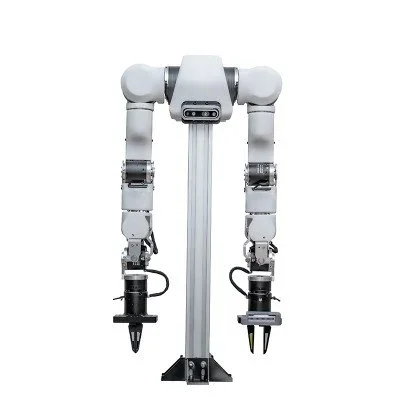
- Inspect both 7-DOF arms for shipping damage — check all joints move freely by hand
- Verify both self-developed 8Nm grippers are securely mounted
- Inspect mobile base wheels — both drive wheels should spin freely without binding
- Check lift column slides smoothly through full range (106–162 cm)
- Confirm Ethernet cable and power adapter are in the box
- Read the VLAI L1 safety guide included in the documentation package
Workspace requirements
- Minimum floor area: 2 m × 2 m clear, level surface
- Robot footprint: 46 cm W × 60 cm L — allow clearance on all sides
- Arm reach: 63 cm per arm — ensure no obstacles within reach when arms are extended
- Power: Standard 110V/220V outlet within 2 m
SDK Installation & Network Setup
Requirements
- Python 3.10+ (3.11 recommended)
- Developer tier or above (Youth tier does not include SDK access)
- L1 powered on and connected to the same local network (Ethernet or 5GHz Wi-Fi)
Install the SDK
pip install roboticscenter
Connect and open the browser teleop panel
rc connect --device l1
# Terminal prints: Session ready → https://platform.roboticscenter.ai/session/RC-XXXX-XXXX
# Open the URL in any browser to access the full teleop panel
Stream joint data via Python
from roboticscenter import L1Robot

robot = L1Robot.connect()
print(robot.session_url)

for frame in robot.stream():
    joints = frame.data['joints']
    print(f"Left:  {joints['left_arm']}")
    print(f"Right: {joints['right_arm']}")
    print(f"Base:  {frame.data['base']}")
rc connect --device l1 --mock to start a fully simulated L1 session. All SDK methods, the browser teleop panel, and data recording work identically in mock mode — useful for CI pipelines and workflow prototyping before your unit ships.
Dual-Arm Calibration
The L1 arms use MIT motor protocol with dual-encoder feedback and FOC control. Calibration sets home positions and verifies the full ±0.02mm accuracy specification.
Check ROS2 joint states
ros2 topic list
ros2 topic echo /joint_states    # verify all 16 DOF are publishing
Launch MoveIt2 for motion planning
ros2 launch l1_moveit l1_moveit.launch.py
# Opens RViz with full dual-arm URDF, collision checking, and Cartesian planning
Home position calibration
- In the MoveIt2 RViz panel, navigate to the Planning tab
- Select the home named target for both arms
- Click Plan & Execute — arms should move to the neutral extended position
- Verify joint states match the expected home configuration in the terminal
Gripper calibration
# Open grippers fully
ros2 topic pub /left_gripper/cmd std_msgs/Float32 "{data: 0.0}"
ros2 topic pub /right_gripper/cmd std_msgs/Float32 "{data: 0.0}"

# Close to 50% — verify 8Nm grippers engage smoothly
ros2 topic pub /left_gripper/cmd std_msgs/Float32 "{data: 0.5}"
ros2 topic pub /right_gripper/cmd std_msgs/Float32 "{data: 0.5}"
Mobile Base Navigation
WASD keyboard drive test
Open the browser teleop panel and use WASD keys to drive the differential base. Speed scaling is adjustable via the panel slider (10%, 50%, 100%).
# Or command directly via ROS2 Twist
ros2 topic pub /base/cmd_vel geometry_msgs/Twist \
  "{linear: {x: 0.3, y: 0.0, z: 0.0}, angular: {x: 0.0, y: 0.0, z: 0.0}}"

# Stop
ros2 topic pub /base/cmd_vel geometry_msgs/Twist \
  "{linear: {x: 0.0, y: 0.0, z: 0.0}, angular: {x: 0.0, y: 0.0, z: 0.0}}"
Lift range test
Use the vertical slider in the browser teleop panel to test the full lift range (106–162 cm) at 30 mm/s. Verify smooth motion throughout the range with no binding or grinding.
# Monitor lift height
ros2 topic echo /lift/state   # current height in meters
First Manipulation Task
Browser teleop panel controls
- Dual arm view: Real-time 3D visualization of both 7-DOF arms — joint angles, end-effector pose (6D), and gripper state at <10ms update rate
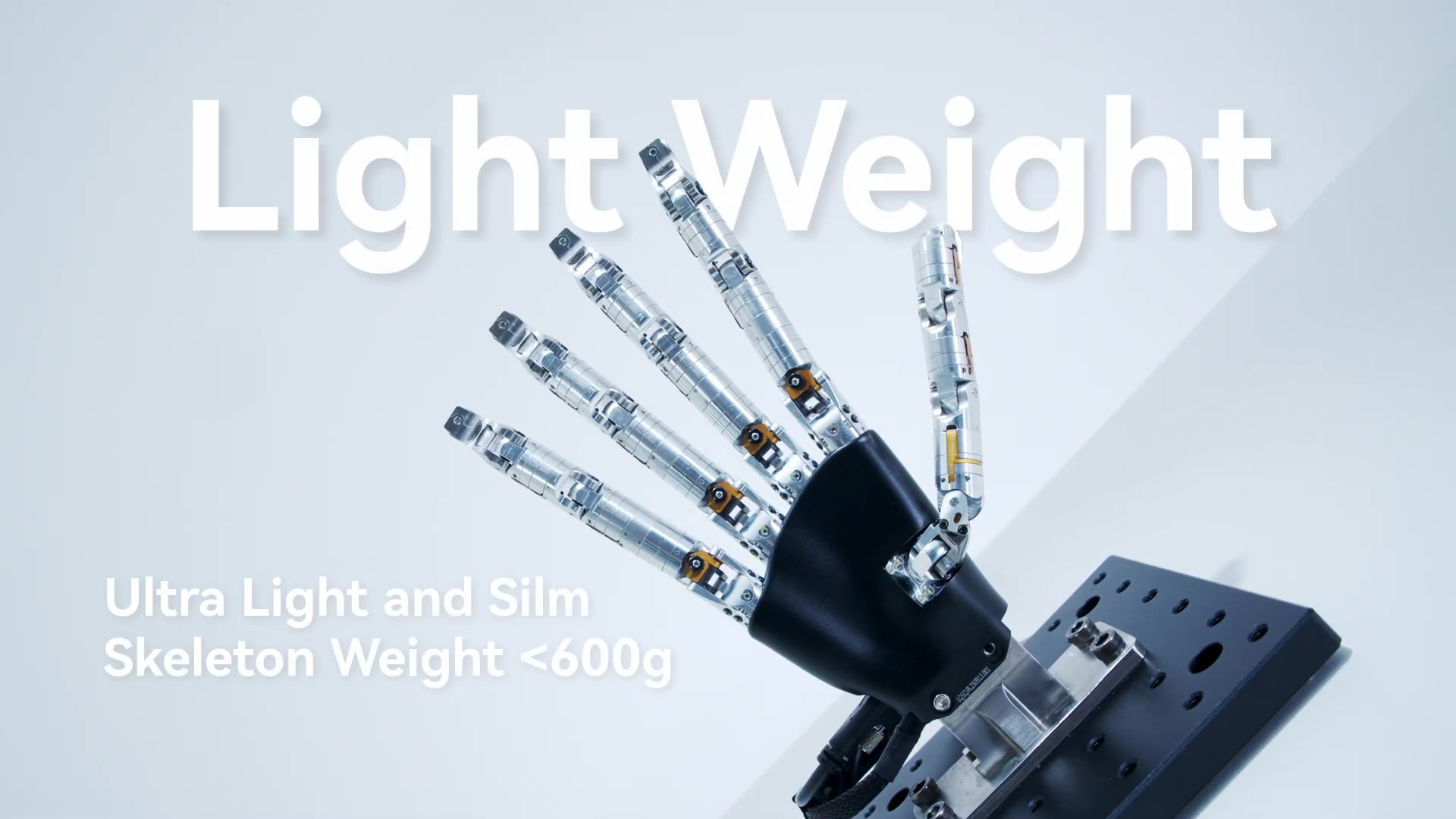
- End-effector mode selector: Switch per arm independently: Gripper (default 8Nm), Dexterous hand, or Suction cup
- Camera feeds: Chest camera (Developer+), wrist cameras left/right (Developer Max)
Simple pick-and-place via MoveIt2
from roboticscenter import L1Robot

robot = L1Robot.connect()

# Move left arm to approach pose
robot.left_arm.move_to(x=0.45, y=0.15, z=0.30, roll=0, pitch=90, yaw=0)

# Open left gripper
robot.left_arm.gripper.open()

# Move down to grasp
robot.left_arm.move_to(x=0.45, y=0.15, z=0.05, roll=0, pitch=90, yaw=0)

# Close gripper to grasp
robot.left_arm.gripper.close(force=0.6)

# Lift
robot.left_arm.move_to(x=0.45, y=0.15, z=0.35, roll=0, pitch=90, yaw=0)
VR teleoperation (Developer Pro and Max)
Plug in an OpenXR-compatible headset and run rc vr --session RC-XXXX-XXXX to map hand controller pose directly to each arm's end-effector in Cartesian space, with haptic feedback proportional to estimated contact force.
Data Collection & One-Click Pipeline
Every rc connect session is a named data collection unit. Sessions auto-upload to your Fearless Platform workspace on close — no manual export step required.
What gets captured per frame
- Joint data — Position, velocity, and effort for all 16 DOF at ~500Hz with microsecond timestamps
- Camera streams — Chest RGB (Developer+), wrist RGB (Developer Max) — timestamped and synchronized to joint data within ±1ms
- Force / contact — Gripper jaw force estimate from motor current
- Base state — Wheel odometry, linear/angular velocity, lift height
- Operator actions — Raw teleop command stream for imitation learning
Episode labeling during collection
- Press Space in the browser panel to mark episode boundaries
- Press L to annotate the current frame with a custom label string
ROS2 agent for cloud bridge
# Run on the L1's onboard computer to bridge topics to the platform
python l1_robot_agent.py \
  --backend wss://platform.roboticscenter.ai \
  --session RC-XXXX-XXXX \
  --ros2
Dataset export formats
Cleaned and annotated sessions export as LeRobot format (HDF5 + JSON manifest), RLDS, or raw JSONL + MP4. Use the Data tab in the platform to configure export and download.