


OpenArm 1 Setup Guide
Follow this path from unboxing to your first AI-trained motion. Takes about 4–5 hours total.
Unboxing & Safety Check
⏱ ~30 minBefore You Begin
- Ensure you have a clear 1m × 1m workspace on a stable surface
- Have a laptop with Ubuntu 22.04 ready (VM works, native preferred)
- Keep the arm powered off during the physical inspection below
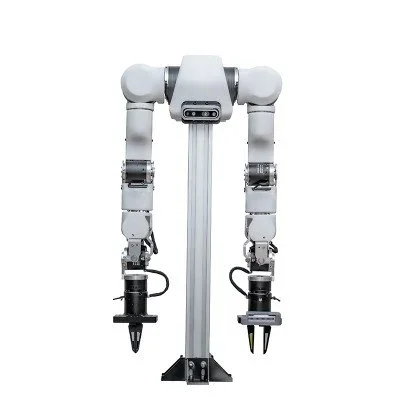
In the Box
Inspection Checklist
- All 8 joints rotate freely (no grinding or resistance)
- Cable routing is intact along the arm body
- Power connector is undamaged
- Emergency stop is accessible and functional
- Never reach into the workspace while the arm is powered
- Always power down before adjusting cables or making hardware changes
- Keep children and pets away during operation
- Secure the base to a stable surface before first run
Software Environment & CAN Configuration
⏱ ~60 minSystem Requirements
- Ubuntu 22.04 LTS (recommended) or 20.04
- Python 3.10+
- ROS2 Humble
- USB-CAN adapter (CANable or compatible — must support CAN FD for full 5 Mbit/s data rate)
Step 2a — Motor ID Configuration
Before any software setup, each Damiao motor must be assigned its CAN ID. This is a one-time step performed on Windows using the Damiao USB CAN Debugger.
Use the table below as the canonical ID assignment for each joint (J1–J8):
| Joint | Transmitter ID | Receiver ID |
|---|---|---|
| J1 | 0x01 | 0x11 |
| J2 | 0x02 | 0x12 |
| J3 | 0x03 | 0x13 |
| J4 | 0x04 | 0x14 |
| J5 | 0x05 | 0x15 |
| J6 | 0x06 | 0x16 |
| J7 | 0x07 | 0x17 |
| J8 | 0x08 | 0x18 |
Step 2b — Install OpenArm Packages
On your Ubuntu machine, install all required packages from the official OpenArm PPA:
sudo apt install -y software-properties-common
sudo add-apt-repository -y ppa:openarm/main
sudo apt update
sudo apt install -y \
  can-utils \
  iproute2 \
  libeigen3-dev \
  libopenarm-can-dev \
  liborocos-kdl-dev \
  liburdfdom-dev \
  liburdfdom-headers-dev \
  libyaml-cpp-dev \
  openarm-can-utils
Step 2c — Set Up CAN Interface (CAN FD)
OpenArm motors support both CAN 2.0 and CAN FD. CAN FD is recommended — it runs the data phase at 5 Mbit/s and supports up to 64-byte payloads, required for full Damiao motor bandwidth.
| Mode | Nominal Baud | Data Baud | Payload |
|---|---|---|---|
| CAN 2.0 | 1 Mbit/s | — | 8 bytes |
| CAN FD | 1 Mbit/s | 5 Mbit/s | up to 64 bytes |
Recommended — use the OpenArm helper:
# CAN FD, 1M nominal / 5M data (recommended for single arm)
openarm-can-configure-socketcan can0 -fd -b 1000000 -d 5000000

# CAN 2.0 fallback (1M baud, no FD)
openarm-can-configure-socketcan can0

# 4-arm bimanual setup (can0–can3)
openarm-can-configure-socketcan-4-arms -fd

# Verify the interface is UP
ip link show can0
Manual ip link commands (if not using the helper):
# CAN 2.0
sudo ip link set can0 down
sudo ip link set can0 type can bitrate 1000000
sudo ip link set can0 up

# CAN FD — 1M nominal / 5M data
sudo ip link set can0 down
sudo ip link set can0 type can bitrate 1000000 dbitrate 5000000 fd on
sudo ip link set can0 upcan0. A bimanual setup uses can0 (right leader) + can1 (left leader) + can2 (right follower) + can3 (left follower).
Step 2d — Motor Control Commands & Debugging
Use these cansend commands for low-level debugging. Monitor the bus first before sending any commands:
# Monitor all CAN frames
candump -x can0

# Change motor baudrate (replace 1 with target motor CAN ID)
openarm-can-change-baudrate --baudrate 5000000 --canid 1 --socketcan can0
# Persist across power cycles (max ~10,000 flash writes per motor — use sparingly)
openarm-can-change-baudrate --baudrate 5000000 --canid 1 --socketcan can0 --flash
CAN 2.0 motor control — replace 001 with the target joint's Transmitter ID from the table above:
# Clear motor error
cansend can0 001#FFFFFFFFFFFFFFFB
# Enable motor
cansend can0 001#FFFFFFFFFFFFFFFC
# Disable motor
cansend can0 001#FFFFFFFFFFFFFFFD
CAN FD motor control — note the extra #1 after ## (BRS flag):
# Clear motor error
cansend can0 001##1FFFFFFFFFFFFFFFB
# Enable motor
cansend can0 001##1FFFFFFFFFFFFFFFC
# Disable motor
cansend can0 001##1FFFFFFFFFFFFFFFD--flash flag persists baudrate changes — each motor supports a maximum of ~10,000 flash write cycles.
Motor LED Status
Each Damiao motor has an onboard LED indicating current state. Use this as a quick health check after powering on:
| LED Pattern | Meaning |
|---|---|
| Green (steady) | Motor enabled and ready |
| Red (steady) | Motor disabled |
| Red (flashing) | Motor error state — send Clear Error command before re-enabling |
Step 2e — Install ROS2 Packages
sudo apt install ros-humble-ros2-control ros-humble-ros2-controllers
git clone https://github.com/enactic/openarm_ros2
cd openarm_ros2 && colcon build
Install Python SDK
pip install roboticscenter
python -c "import roboticscenter; print('SDK ready')"First Motion
⏱ ~30 minStart with Fake Hardware (Safe — No Physical Movement)
Always verify in simulation before moving the real arm. Run the launch file with use_fake_hardware:=true — no CAN connection needed:
ros2 launch openarm_ros2 openarm.launch.py use_fake_hardware:=true
ros2 run openarm_ros2 test_trajectory
Open RViz to verify the simulated arm moves through the test trajectory correctly. All 8 joints should animate smoothly.
Switch to Real Hardware
Once simulation looks correct, plug in the CAN adapter and power on the arm:
ros2 launch openarm_ros2 openarm.launch.pySend First Motion Command (Home Position)
ros2 action send_goal /joint_trajectory_controller/follow_joint_trajectory \
control_msgs/action/FollowJointTrajectory "{...}"Calibration & Homing
⏱ ~45 minJoint zero positions must match physical reality for accurate control. Miscalibrated joints cause policy failures downstream — do not skip this step.
Homing Procedure
- Power on with the arm in a known safe position (roughly extended, away from obstacles)
- Run the homing script:
ros2 run openarm_ros2 homing - The script will prompt you to manually guide each joint to its hard stop — move slowly
- Confirm zero position is saved for each joint when prompted
Verify Calibration
ros2 topic echo /joint_states # check all positions read near zeroTeleoperation
⏱ ~60 minChoose Your Operator Device
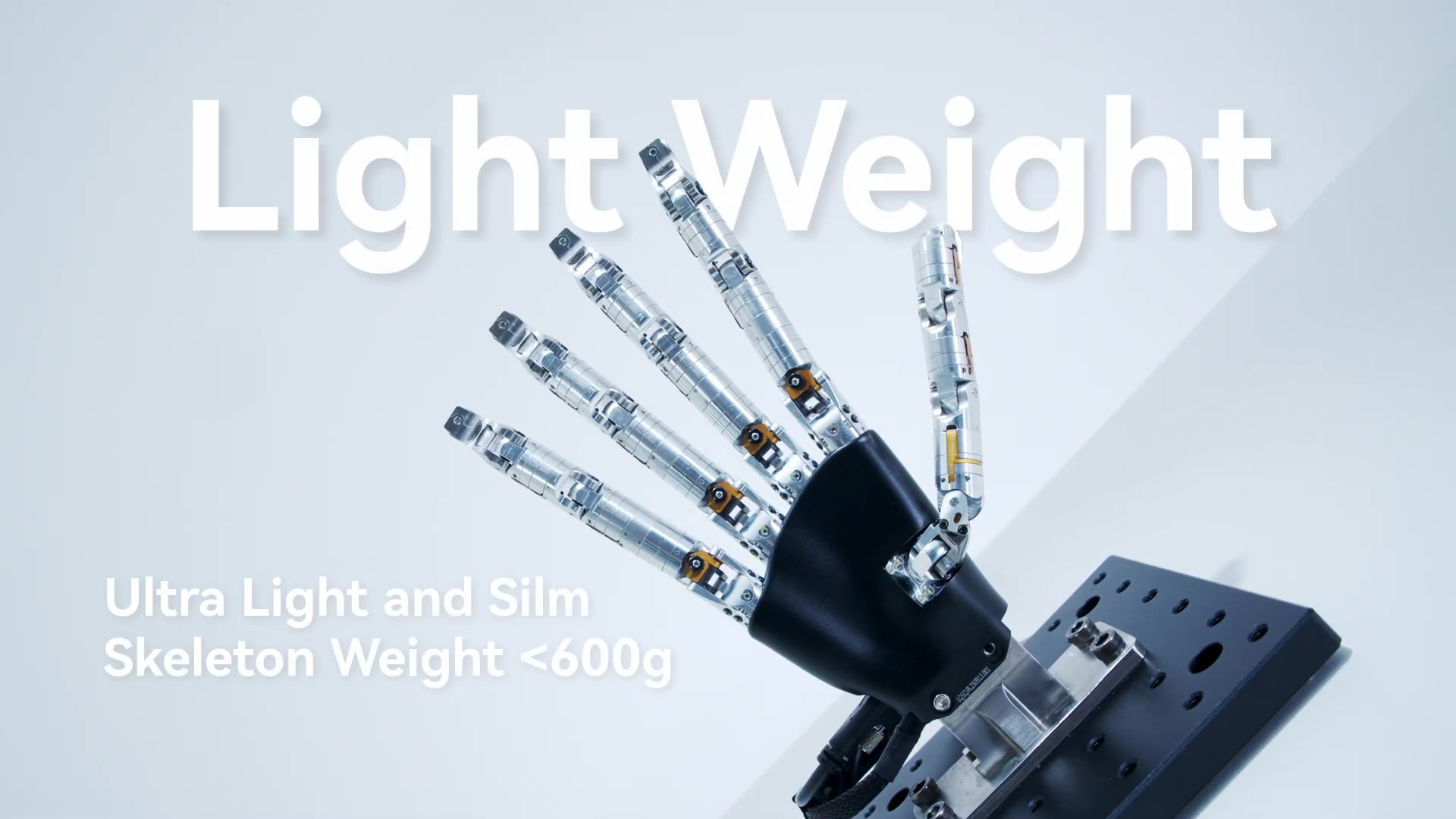
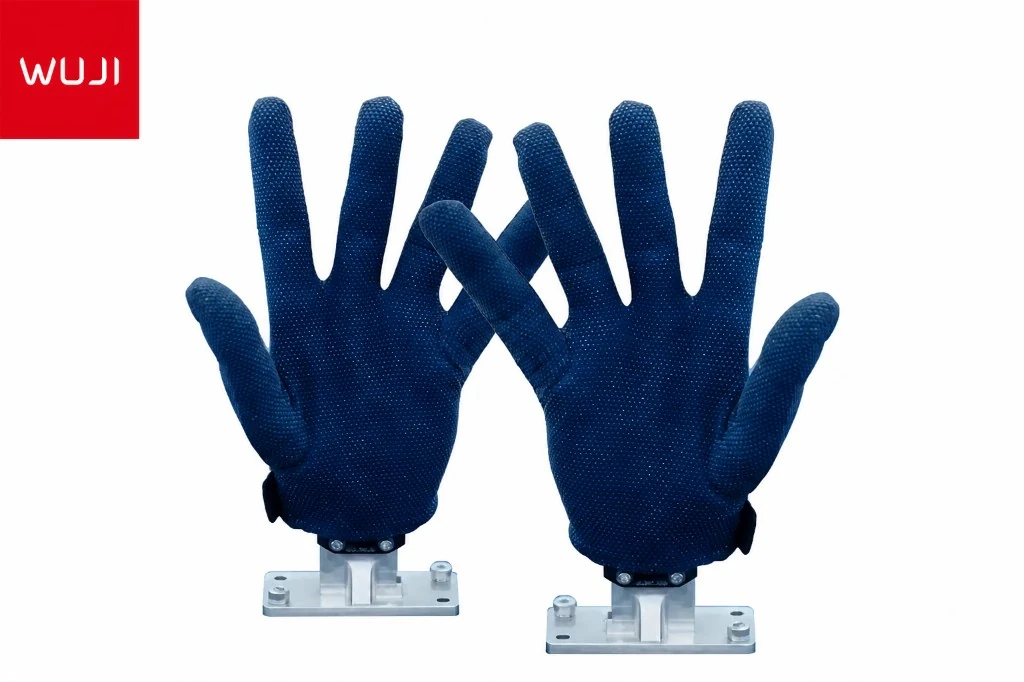
Wuji Hand
Best for dexterity and fine manipulation tasks
VR Controller
Meta Quest / Steam VR — good for spatial tasks
Keyboard / Gamepad
For basic testing and coarse positioning
Connect Operator Device
ros2 launch openarm_ros2 teleop.launch.py operator:=wuji_handCheck Latency
Target end-to-end latency is under 50 ms. Run the latency test and verify:
ros2 run openarm_ros2 latency_checkData Collection
⏱ OngoingChoose Data Format
- LeRobot (recommended) — purpose-built for imitation learning and model training
- RLDS — compatible with Open-X-Embodiment and cross-robot datasets
Start Recording
ros2 launch openarm_ros2 record.launch.py \
  output_format:=lerobot \
  task_name:=pick_and_place \
  episode_id:=0
Each episode is saved as a self-contained file with joint states, camera frames, and action labels. Run multiple episodes, then use the Robotics Center platform to review and filter.
Episode Quality Checklist
- Camera feeds are synchronized (timestamps within 5 ms)
- Joint states recorded at ≥ 50 Hz
- Action labels match demonstrated behavior
- Failed episodes are marked for exclusion, not deleted
is_failure:=true — the platform can use them for contrastive learning or filtering.
AI Model Training & Deployment
⏱ OngoingRecommended Models for OpenArm
- ACT (Action Chunking Transformer) — best for pick-and-place. Predicts action chunks from camera observations.
- Diffusion Policy — best for contact-rich tasks. Generates smooth trajectories via denoising.
- OpenVLA — best for language-conditioned tasks. Combines vision-language understanding with robot actions.
Fine-tune ACT on Your Data
pip install lerobot
python train.py --config act_openarm --data-path ./recordings/
Training on a consumer GPU (RTX 3090 or better) typically takes 2–4 hours for 50 episodes. Use the --resume flag to continue from a checkpoint.
Deploy on Edge
ros2 launch openarm_ros2 inference.launch.py \
  model_path:=./checkpoints/best.pt
The inference node reads camera frames, runs the model, and publishes joint commands at control frequency. Target inference latency is under 20 ms for real-time control.
You've completed the full setup path!
Your OpenArm is calibrated, teleoperated, data-collected, and running AI. Share what you built with the community.