
OpenArm 101 — SocketCAN Setup, ROS2 & Data Collection Guide

Complete guide to connecting the OpenArm 101 over SocketCAN, configuring control profiles, collecting imitation learning data, and deploying the cloud agent for platform-based teleoperation.

Device: OpenArm 101 Agent: openarm_agent Interface: SocketCAN (can0) Telemetry: 8 Hz
SocketCAN ROS2 MoveIt2 LeRobot 7 DOF Imitation Learning

1. Overview

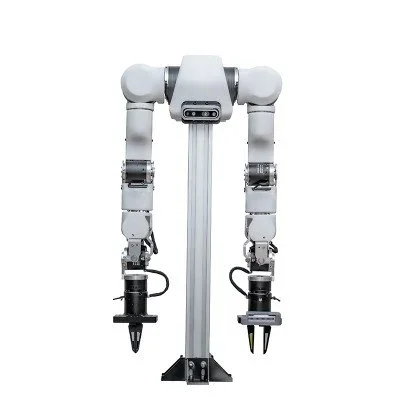
The OpenArm 101 is a 7-DOF, human-scale robot arm built for data-driven manipulation research. It uses SocketCAN — the standard Linux CAN-bus interface — rather than proprietary USB protocols, making it compatible with any Linux machine that has a CAN adapter. Its modular aluminum frame, M6 mounting grid, and anthropomorphic kinematics make it a natural fit for imitation learning pipelines that rely on natural human demonstrations.

Key differentiators compared to other research arms: SocketCAN for broad Linux compatibility, three named safety profiles (safe / slow / normal) to de-risk initial bring-up, 8 Hz real-time telemetry over WebSocket, gravity compensation and impedance control out of the box, and a one-click cloud agent (run_cloud_openarm_agent.sh) that connects the arm to the Fearless Platform in a single command.

CAD files are provided as OpenArm_v1.1_follower.STEP and OpenArm_v1.1_leader.STEP. The arm is sold and supported in Palo Alto at the Silicon Valley Robotics Center.

2. Hardware Specs

Property Value
Degrees of Freedom7 DOF per arm
Reach633 mm (human-scale)
Weight (per arm)~5.5 kg
Rated Payload4.1 kg
Peak Payload6.0 kg
FrameModular aluminum, anthropomorphic structure
MountingUniform M6 grid
CommunicationSocketCAN (standard Linux CAN-bus)
Default CAN interfacecan0 (configurable via CAN_IFACE)
CAN FDDisabled by default (CANFD_FLAG=--no-canfd)
Telemetry rate8 Hz (configurable via TELEMETRY_HZ)
Control profilessafe / slow / normal
Control modesPosition, velocity, impedance, force; gravity compensation
SimulationMuJoCo, Isaac Sim
CADOpenArm_v1.1_follower.STEP, OpenArm_v1.1_leader.STEP
OS requirementUbuntu Linux with SocketCAN support

3. Quick Start

From unboxing to a live platform session in four steps:

  1. Install the OpenArm CAN libraries.
    # Ubuntu: add the official PPA and install
    sudo add-apt-repository -y ppa:openarm/main
    sudo apt update
    sudo apt install -y libopenarm-can-dev openarm-can-utils
    
    # Python bindings (for SDK use)
    pip install openarm-can
  2. Configure the SocketCAN interface.
    # Bring up can0 using the OpenArm utility
    openarm-can-configure-socketcan can0
    
    # Verify the interface is UP
    ip link show can0
    For a second arm, repeat with can1.
  3. Create a session on the platform and launch the agent. Open platform.roboticscenter.ai → Teleop → Create New Session. Copy the session ID, then:
    cd openarm-agent
    
    # One-click launcher (installs requirements automatically)
    ./run_cloud_openarm_agent.sh YOUR_SESSION_ID
  4. Control via the platform teleop panel. Open the session URL in your browser. Use the on-screen buttons or WASD+QE keyboard controls to command the arm. The arm moves at the safe profile by default.
No hardware available? Run the agent in mock mode — no CAN adapter or physical arm required:
python openarm_agent.py --backend wss://fearless-backend-533466225971.us-central1.run.app --session YOUR_SESSION_ID --mock

4. SDK Integration

The RoboticsCenter SDK wraps OpenArm under the unified platform session model. Install and connect in two commands:

pip install roboticscenter
rc connect --device openarm_101 --port can0

For direct Python integration using the openarm-can library:

import openarm_can

# Connect to the arm on can0
arm = openarm_can.OpenArm(interface="can0")
arm.connect()
arm.set_profile("safe")   # safe | slow | normal

# Read current joint state
state = arm.get_joint_angles()
print(state)   # list of 7 angles in radians

# Command a joint position target
arm.set_joint_angles([0.0, 0.2, 0.0, -0.5, 0.0, 0.3, 0.0])

arm.disconnect()

Dual-arm (bimanual) one-click launch

For a bimanual setup with two arms on can0 and can1:

cd openarm-agent
./run_cloud_openarm_dual.sh YOUR_SESSION_ID

# Optional environment variables:
# BASE_NODE_ID=my-dual-openarm
# PROFILE=safe|slow|normal

Environment variable reference

VariableDefaultDescription
CAN_IFACEcan0SocketCAN interface name
BACKEND_URLproduction WSS URLOverride backend WebSocket URL
NODE_ID<hostname>-openarmNode identifier shown in platform UI
TELEMETRY_HZ8Joint telemetry reporting frequency
CANFD_FLAG--no-canfdSet to empty string to enable CAN FD
OPENARM_PROFILEsafeMotion profile: safe, slow, or normal
FEARLESS_TOKENAuth token required when platform auth is enabled

5. Control Profiles

OpenArm ships with three named motion profiles that limit joint velocities and torques at the firmware level. Always start with safe when bringing up a new arm or working in a shared space.

ProfileUse caseNotes
safe Initial hardware bring-up, crowded workspaces, human-in-the-loop teleop Lowest velocity and torque limits. Recommended default for all new setups.
slow Demonstration recording, development testing Middle tier. Suitable once the workspace is validated and collision zones are known.
normal Trained policy execution, production data collection Full-speed motion. Use only after validating the full workspace in safe and slow modes.

Set the profile at launch time:

OPENARM_PROFILE=slow ./run_cloud_openarm_agent.sh YOUR_SESSION_ID

Or at runtime via the SDK:

arm.set_profile("normal")
Safety first. Always verify the arm's full range of motion in safe mode before switching to normal. The normal profile disables software velocity damping — unexpected policy outputs can cause rapid arm movement.

6. ROS2 Integration

OpenArm has native ROS2 support with a complete URDF/XACRO model, ros2_controllers integration, and a MoveIt2 planning group configuration. The software stack provides bilateral teleoperation with force feedback, gravity compensation, impedance control, and force control modes.

# 1. Install CAN libraries (see Quick Start step 1)
# 2. Configure SocketCAN
openarm-can-configure-socketcan can0

# 3. Clone the OpenArm ROS2 driver (adjust to your workspace)
cd <ros2_ws>/src
git clone https://github.com/enactic/openarm_ros2.git

# 4. Build
cd <ros2_ws>
colcon build --packages-select openarm_ros2
source install/setup.bash

# 5. Launch the driver (publishes /joint_states and accepts /joint_commands)
ros2 launch openarm_ros2 openarm.launch.py can_interface:=can0

# 6. Launch MoveIt2 planning
ros2 launch openarm_moveit_config openarm_moveit.launch.py

Simulation (MuJoCo & Isaac Sim)

OpenArm's calibrated simulation models mirror the real arm's kinematics, dynamics, and actuation limits. State definitions and action spaces are identical between sim and real, enabling mixed-domain training and policy transfer without reconfiguration.

# MuJoCo — launch sim with the OpenArm model
python -m mujoco.viewer --mjcf=openarm_v1.1.xml

# Isaac Sim — use the provided USD asset
# (contact SVRC for Isaac Sim asset access)

LeRobot integration

OpenArm is also compatible with the LeRobot data collection pipeline. Use the openarm_agent.py to record episodes in LeRobot HDF5 format:

# Record 10 episodes via LeRobot CLI (requires LeRobot + openarm-can installed)
lerobot-record \
    --robot.type=openarm_101 \
    --robot.can_interface=can0 \
    --robot.profile=slow \
    --dataset.repo_id=$USER/openarm_dataset \
    --dataset.num_episodes=10 \
    --dataset.episode_time_s=30 \
    --dataset.single_task="Pick and place task."

7. Data Collection

The openarm_agent reports the following telemetry per frame during an active session or recording:

Signal Type Description
Joint anglesfloat[7]Current angle per joint in radians, reported at 8 Hz
Estimated motor statesdictPer-motor velocity and current estimates from the CAN bus
Node network infodictCAN node IDs, bus load, and message latency
Robot statusstrExecution state: idle / executing / fault
Session IDstrPlatform-assigned session identifier
Timestampfloat64Unix timestamp with millisecond resolution

To start a recording session, create a session in the platform, launch the agent, then press the record button in the teleop panel or use the SDK:

from roboticscenter import OpenArm101

arm = OpenArm101.connect(can_interface="can0", profile="slow")
print(f"Session: {arm.session_url}")

with arm.record_episode(task="grasp cup") as episode:
    # Teleoperate or run a script here
    # Episode is saved and uploaded when the context exits
    pass

Recorded episodes appear in the platform Episode Browser immediately after the recording session ends. Each episode includes joint angle trajectories, robot status events, and a manifest with task metadata.

8. Troubleshooting

Symptom Likely cause Fix
CAN interface not found USB-CAN adapter not recognized or driver not loaded Run ip link show to list all interfaces. If can0 is missing, check that your USB-CAN adapter is plugged in and the kernel module is loaded: sudo modprobe can_dev.
Telemetry not reporting CAN bus not configured or arm not powered Run openarm-can-configure-socketcan can0 and confirm ip link show can0 shows UP. Verify the arm's power LED is on.
Arm moves unexpectedly fast Profile set to normal in an unvalidated workspace Switch to OPENARM_PROFILE=safe and re-validate the full workspace before re-enabling normal.
Policy execution inconsistent Mismatch between sim and real joint limits Verify the MuJoCo or Isaac Sim model version matches the hardware version (v1.1). Re-check the joint angle offsets in the URDF against the physical arm's zero configuration.
Platform WebSocket disconnects Network instability or backend timeout The agent auto-reconnects. If reconnects fail, restart the agent with the same session ID — the session persists and all previously recorded episodes remain accessible.
Still stuck? Contact SVRC support with the output of ip link show can0 and the agent log (set LOG_LEVEL=debug before re-running). Same-day support is available in Palo Alto.
New to robotics? Learn fundamentals — arms, teleop, sim, ROS 2 — at the SVRC Robotics Academy before integrating hardware.
Have a question? Ask the community or contact support — same-day help available in Palo Alto.

Ready to get your OpenArm 101?

Same-day pickup in Palo Alto. Connect to the platform and start collecting data today.