


Damiao AGV Setup Guide
From unboxing to driving from your browser. Covers unboxing safety, charging, software, teleoperation, autonomous navigation, and arm mounting.
Unboxing & Safety Check
Inspect the AGV and prepare the workspace
- Remove packaging. Carefully remove all foam inserts, cable ties, and shipping restraints. Inspect wheels for shipping damage — all four mecanum wheels should spin freely by hand.
- Inspect connectors. Check that all cable connectors on the main controller are seated. Shipping vibration occasionally loosens JST or Deans connectors.
- Workspace clearance. Before any power-on, clear at least 2 m of open space in all directions. The AGV can accelerate quickly — bystanders should stand back during first-motion tests.
- Emergency stop. Locate the main power cutoff switch on the chassis. Know how to reach it before powering on. For the first session, keep one hand near the cutoff at all times.
- Surface check. The mecanum wheels require a flat, hard surface (concrete, wood flooring, or smooth tile) for correct omnidirectional performance. Carpet and uneven surfaces reduce lateral control authority significantly.
Battery Charging & Power-On
Charge the battery pack fully before first use
- Connect the charger. Locate the battery charge port on the AGV chassis (typically a large barrel connector or XT60 port). Connect the included balance charger. Plug the charger into a grounded 110/220V outlet.
- Charge to full. Allow the battery to charge fully before first use — typically 2–4 hours depending on initial state. The charger LED will turn green (or stop flashing) when complete. Do not leave unattended during first charge.
- Check battery voltage. After charging, the battery voltage should read at the nominal fully-charged level (check your battery pack label). Use a multimeter or the onboard display if equipped.
- Power on sequence. Connect the battery to the main controller. Toggle the main power switch. The controller should boot within 5–10 seconds — indicator LEDs will stabilise. Do not send motion commands during boot.
Software & ROS2 Navigation Stack
Install the Python agent and optional ROS2 packages on your PC
The dami_agent.py script is the primary bridge between the Fearless Platform and the AGV hardware. It requires Python 3.8+ and two pip packages.
# Install dependencies
pip install pyserial websockets

# Confirm your USB-to-TTL adapter appears
ls /dev/ttyUSB*   # Linux

# Add your user to the dialout group (Linux) if you get permission errors
sudo usermod -aG dialout $USER
# Log out and back in for group change to take effect
Wire the USB-to-TTL adapter: connect the adapter's TX pin to the AGV main controller's UART5_RX (pin PD2). Connect GND to GND. Do NOT connect the adapter's RX pin or 5V to the AGV.
For ROS2 integration, install the navigation stack:
# ROS2 Humble (Ubuntu 22.04) — adjust for your distro
sudo apt install ros-humble-navigation2 ros-humble-nav2-bringup ros-humble-slam-toolbox
python3 dami_agent.py --session RC-XXXX-XXXX --mock
Mock mode skips serial port opening. All WebSocket command parsing, telemetry forwarding, and timeout safety logic runs identically.
Teleoperation
Drive the AGV from your browser via the Fearless Platform
- Open platform.roboticscenter.ai, navigate to the Teleop section, and create a new session. Copy the session ID (format:
RC-XXXX-XXXX). - Launch the agent with your serial port and session ID:
python3 dami_agent.py \
  --session RC-XXXX-XXXX \
  --serial-port /dev/ttyUSB0 \
  --backend ws://localhost:8000
- The agent connects to the platform, registers the AGV node as
device_type: "mobile_base", and begins the control loop at 30 Hz. - Open the session URL in your browser. Use the directional controls to send
movecommands. The AGV responds within one control-loop tick (33 ms at 30 Hz).
Command types accepted by the agent:
# Move forward along X axis
{"type": "move", "axis": "x", "dir": 1}

# Move laterally right (Y axis)
{"type": "move", "axis": "y", "dir": 1}

# Rotate counter-clockwise (Z axis)
{"type": "move", "axis": "z", "dir": -1}

# Stop all motion immediately
{"type": "stop"}

# Goal-based delta movement
{"type": "goal", "delta": {"x": 0.5, "y": 0.0, "yaw": 0.0}}
To adjust motion speed, use the --amp parameter (default 660, recommended range 500–760). Higher values produce faster motion:
python3 dami_agent.py --session RC-XXXX-XXXX --serial-port /dev/ttyUSB0 --amp 500
If the AGV moves in the wrong direction, use --invert-x, --invert-y, or --invert-z to flip axes without any firmware change.
Autonomous Navigation Setup
Configure ROS2 nav2, SLAM, and waypoint following
For autonomous navigation, publish odometry and sensor data (from a LiDAR or depth camera on the AGV) to ROS2 topics, then use nav2 for path planning.
# Launch SLAM Toolbox for mapping
ros2 launch slam_toolbox online_async_launch.py

# In a second terminal — launch nav2 with the AGV base footprint
ros2 launch nav2_bringup navigation_launch.py \
  params_file:=/path/to/your/agv_nav2_params.yaml

# Send a navigation goal via CLI
ros2 action send_goal /navigate_to_pose nav2_msgs/action/NavigateToPose \
  "{pose: {header: {frame_id: map}, pose: {position: {x: 1.0, y: 0.5}, orientation: {w: 1.0}}}}"
Key nav2 parameters to tune for the Damiao AGV:
- robot_radius — Set to the AGV's half-width plus a safety margin (typically 0.4–0.6 m).
- max_vel_x / max_vel_y — Set based on your
--ampvalue and measured max speed. Start conservatively (0.3 m/s). - max_vel_theta — Rotational speed limit. Measure with a slow
--amp 400test first. - holonomic — Set to
truein the DWB local planner to enable lateral motion planning (required for mecanum/omni wheels).
Mounting a Robot Arm
Bolt an OpenArm or DK1 to the top plate and register both in one platform session
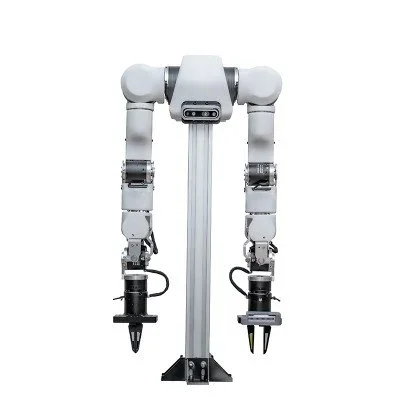
The Damiao AGV's top plate is designed to accept standard robot arm base flanges. This step covers the physical integration and the Fearless Platform multi-node session setup.
Physical mounting
- Power off the AGV and arm before any mechanical work.
- Position the robot arm base plate over the AGV top plate mounting holes. Use the provided M6 socket-head bolts (or M5 for lighter arms). Apply thread-locking compound on all fasteners.
- Route the arm's power and CAN/USB cables down through the cable management channel in the top plate to the AGV chassis compartment. Secure with cable ties — allow enough slack for the arm's full workspace without pulling.
- Power the arm from a separate battery or regulated supply in the AGV chassis. Do not share the AGV drive battery with the arm controller without appropriate isolation.
Multi-node platform session
Launch both agents pointing to the same session ID. They register as independent nodes and the platform records both streams synchronously:
# Terminal 1 — AGV agent
python3 dami_agent.py \
  --session RC-XXXX-XXXX \
  --serial-port /dev/ttyUSB0 \
  --node-id damiao-base

# Terminal 2 — OpenArm agent (example)
python3 openarm_agent.py \
  --session RC-XXXX-XXXX \
  --can-interface can0 \
  --node-id openarm-right
In the Fearless Platform teleop panel, both nodes appear. Operators can send motion commands to the AGV (axis x/y/z) and arm commands independently in the same session. Episode recording captures all nodes' telemetry in a single JSONL archive — the complete mobile manipulation trajectory including base velocity and arm joint positions, synchronised by timestamp.
CAN Bus & Motor Configuration
Configure the CAN FD bus and set motor IDs for any Damiao actuators mounted on the AGV
When an OpenArm or DK1 arm is mounted on the AGV top plate, its Damiao QDD motors communicate over a CAN FD bus from the onboard computer. This section covers bus bring-up, motor ID assignment, commissioning commands, and LED diagnostics.
Install can-utils
# Install SocketCAN utilities (Ubuntu / Debian)
sudo apt update && sudo apt install -y can-utils
Bring Up the CAN FD Interface
CAN FD at 1 Mbit/s nominal + 5 Mbit/s data is the recommended mode for all new deployments:
# Bring interface down first if already up
sudo ip link set can0 down

# Configure CAN FD: 1M nominal baud, 5M data baud, FD mode enabled
sudo ip link set can0 type can bitrate 1000000 dbitrate 5000000 fd on

# Bring interface up
sudo ip link set can0 up

# Verify — output should show "fd on"
ip link show can0
If you have the OpenArm PPA installed, the helper script wraps these commands:
# CAN FD single arm
openarm-can-configure-socketcan can0 -fd -b 1000000 -d 5000000

# Classic CAN 2.0 (legacy / compatibility)
openarm-can-configure-socketcan can0
Monitor the Bus
# Dump all CAN frames — verify connectivity before sending commands
candump -x can0

# Dump with timestamps
candump -td can0
Motor ID Assignment (J1–J8)
Each Damiao motor on the CAN bus must have a unique pair of IDs: a transmitter ID (host → motor) and a receiver ID (motor → host). IDs are configured using the Damiao Windows debugging tool before arm assembly. Standard OpenArm mapping:
| Joint | Motor Model | TX ID (host → motor) | RX ID (motor → host) |
|---|---|---|---|
| J1 — base rotation | DM-J4340p-2EC | 0x01 | 0x11 |
| J2 — shoulder pitch | DM-J4340p-2EC | 0x02 | 0x12 |
| J3 — shoulder roll | DM-J4340p-2EC | 0x03 | 0x13 |
| J4 — elbow pitch | DM-J4340-2EC | 0x04 | 0x14 |
| J5 — elbow roll | DM-J4340-2EC | 0x05 | 0x15 |
| J6 — wrist pitch | DM-J4340-2EC | 0x06 | 0x16 |
| J7 — wrist roll | DM-J4310-2EC V1.1 | 0x07 | 0x17 |
| J8 — gripper | DM-J4310-2EC V1.1 | 0x08 | 0x18 |
IDs are unique per CAN bus, not globally. A bimanual setup (two arms) uses a second bus — can1 — with the same ID scheme.
cansend Test Commands
Use cansend for low-level commissioning. Replace 001 with the hex TX ID of the target joint (e.g., 002 for J2).
## CAN FD commands (use when interface has "fd on")

# Enable motor — motor holds position and accepts commands
cansend can0 001##1FFFFFFFFFFFFFFFC

# Disable motor — motor becomes free-wheeling
cansend can0 001##1FFFFFFFFFFFFFFFD

# Clear motor error — required before re-enabling after a fault
cansend can0 001##1FFFFFFFFFFFFFFFB

## CAN 2.0 equivalents (use when interface is classic CAN, no fd on)
cansend can0 001#FFFFFFFFFFFFFFFC   # Enable
cansend can0 001#FFFFFFFFFFFFFFFD   # Disable
cansend can0 001#FFFFFFFFFFFFFFFB   # Clear error
##1 CAN FD syntax when the interface was configured with fd on, and the single # classic syntax for CAN 2.0. Mixing frame types on the same bus will cause bus errors.
LED Status Indicators
Each Damiao motor has a single onboard LED visible through the housing window:
| LED Pattern | State | Action Required |
|---|---|---|
| Green (steady) | Motor enabled and ready | None — motor is active and accepting commands |
| Red (steady) | Motor disabled (powered, not enabled) | Send the Enable command to activate the motor |
| Red (flashing) | Motor fault / error state | Send Clear Error command, investigate cause, then re-enable |
Common fault causes: over-current (reduce gains or load), over-temperature (allow cooling), encoder error (reseat cables), under-voltage (supply below ~18 V on a 24 V system), CAN bus-off (check termination and wiring).
Flash Write Warnings
--flash flag go to RAM only and do not consume flash cycles. Avoid scripts that repeatedly re-flash motor parameters.