


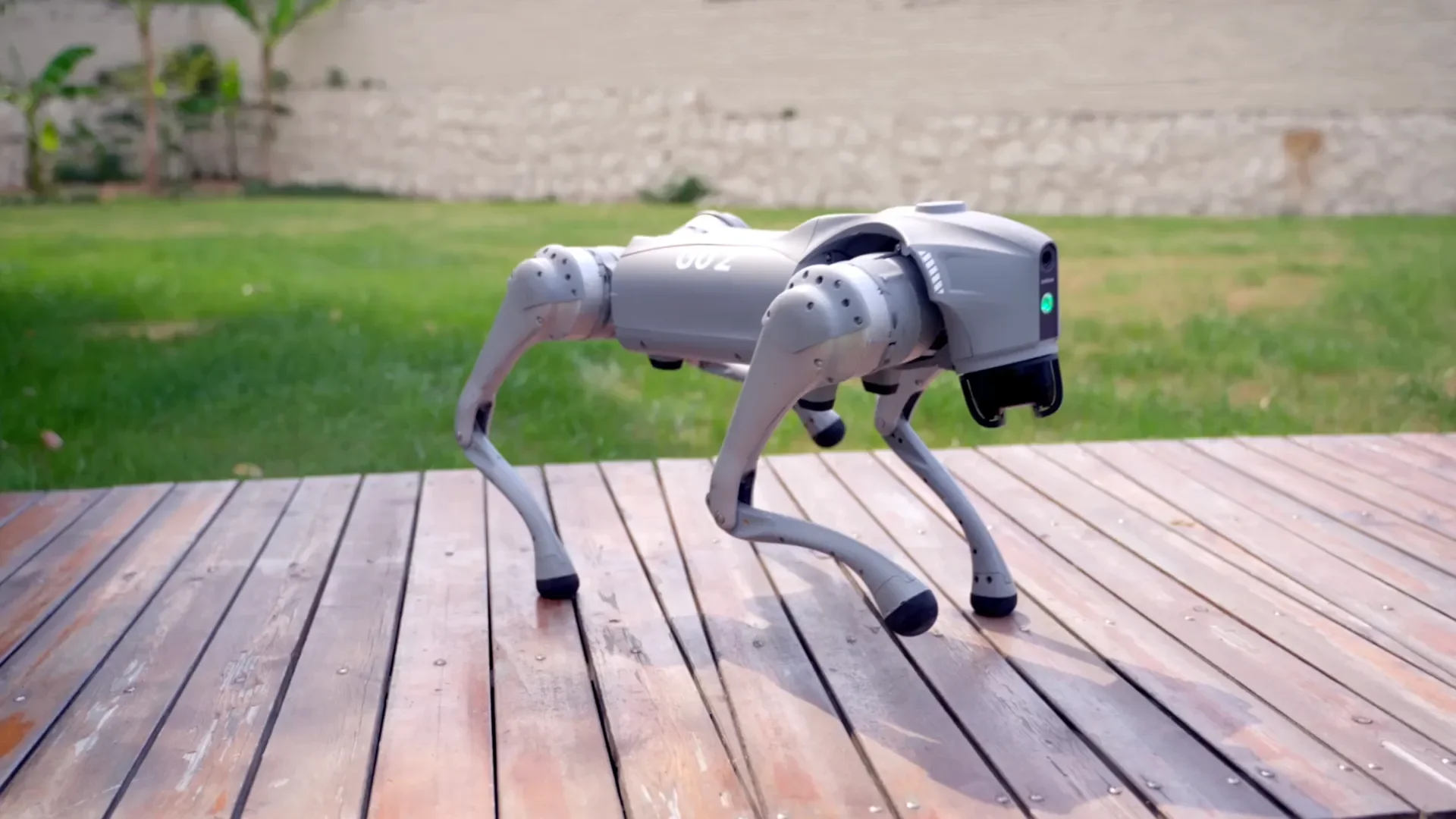
Booster K1 Community
Frequently asked questions, troubleshooting tips, and community resources for the Booster K1 humanoid robot.
Common Questions
How do I connect to the Booster K1 over Ethernet?
Connect your computer's Ethernet interface to the K1's wired port and set your computer's IP to 192.168.10.10 with netmask 255.255.255.0 and gateway 192.168.10.1. The robot's default wired IP is 192.168.10.102. Confirm connectivity with ping 192.168.10.102, then instantiate the SDK client: client = booster.BoosterClient('192.168.10.102').
What is the correct mode transition sequence for the Booster K1?
Always follow the sequence: DAMP → PREP → WALK. Call client.change_mode(booster.Mode.PREP) first and wait at least 2–3 seconds for the robot to stand and stabilize. Only then call client.change_mode(booster.Mode.WALK). Skipping PREP and going directly to WALK from DAMP is not recommended and may cause instability.
CUSTOM mode, which enables direct joint-level control, should only be entered from PREP and only when the robot is physically supported by a lifting device.
What does CUSTOM mode enable on the Booster K1?
CUSTOM mode (client.change_mode(booster.Mode.CUSTOM)) bypasses the high-level walking controller and gives direct access to all 22 joints for per-joint position, velocity, and torque commands. It is intended for advanced research — whole-body manipulation, loco-manipulation experiments, and custom gait development.
Because all safety governors are reduced in CUSTOM mode, Booster Robotics requires the robot to be suspended on a lifting device during development.
How do I read battery level and IMU data from the Booster K1?
Call client.get_robot_status() to retrieve a status object with battery_percentage (float, 0–100), mode, and imu_status fields. The k1_agent.py teleop bridge forwards battery_pct, walk velocity components, active mode, and joint angles at configurable telemetry rate (default 8 Hz) to the platform dashboard via WebSocket.
Can I run Booster K1 code without the physical robot?
Yes. The k1_agent.py script bundled with the RoboticsCenter platform includes a --mock flag that simulates K1 telemetry including joint angles, battery drain, and walk velocity without connecting to real hardware. Run: python k1_agent.py --mock --session YOUR_SESSION_ID. All teleop platform features — joint charts, walk controls, mode display — work identically in mock mode.
How do I control head yaw and pitch on the Booster K1?
Use client.set_head_pose(yaw_rad, pitch_rad). Yaw range is approximately −60° to +60° (−1.05 to +1.05 rad) and pitch range is −30° to +30° (−0.52 to +0.52 rad). In the k1_agent.py platform bridge, head pose is also controllable via cartesian_move commands with axis='ry' (yaw) and axis='rx' (pitch), or via voice commands such as "look left" or "look up".
The robot enters PROTECT mode immediately. What should I do?
PROTECT mode is triggered automatically on fault conditions: surface not flat, joint position error, or communication dropout. Place the robot on a flat, hard surface and restart the robot service via SSH: booster-cli launch -c restart. Allow a full boot cycle before reconnecting. Check that your Ethernet configuration is correct and the ping to 192.168.10.102 is stable.
How do I collect diagnostic logs?
SSH into the robot and run: booster-cli log -st YYYYMMDD-HHMMSS -et YYYYMMDD-HHMMSS -o /home/booster/Documents. Share the log with Robotics Center support or post in the community forum with your SSH log output and SDK version.
Community Resources
Have a question or want to share your K1 research?
Community Forum → Developer Wiki → Contact Support →Related Hardware
Other hardware that pairs well with the Booster K1 for full-body manipulation and data collection.
BrainCo Revo II
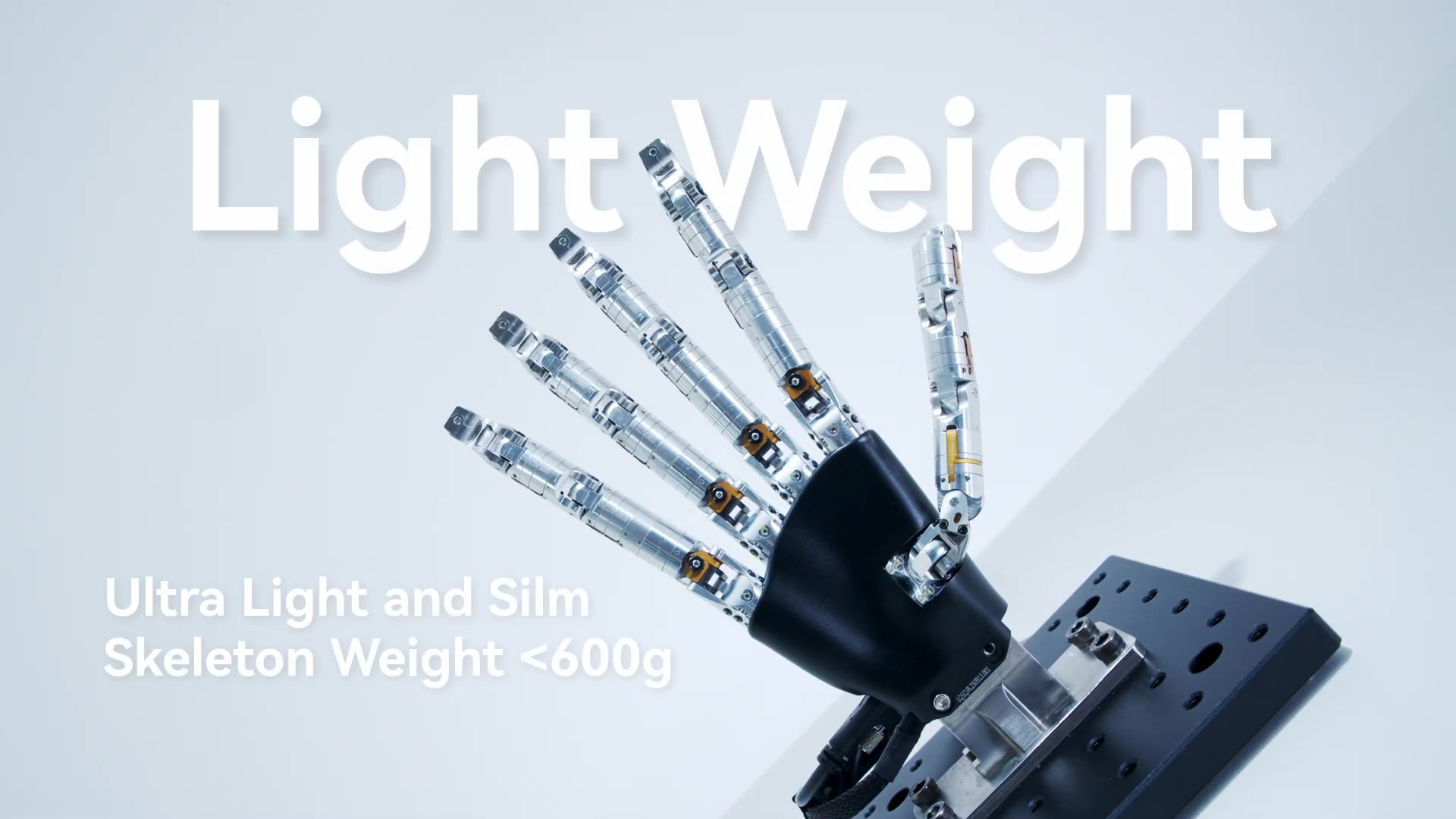
Bionic hand end-effector for dexterous manipulation experiments on the K1.
VLAI L1
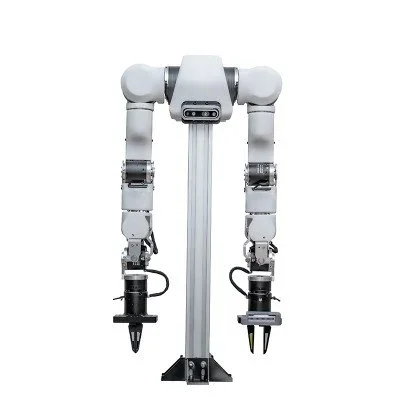
Mobile dual-arm manipulator — compare mobile manipulation vs. humanoid approaches.
OpenArm 1
Tabletop collaborative arm for lower-cost manipulation research and data collection.
LinkerBot O6
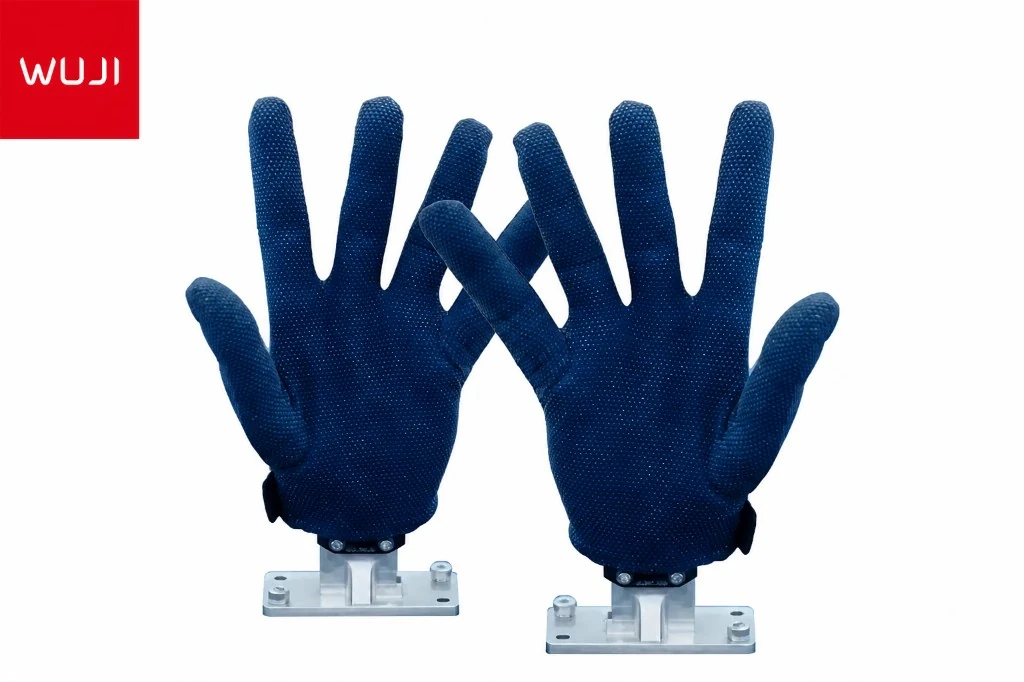
Glove-based teleoperation of dexterous fingers — compatible with the same platform session infrastructure as the K1.